Google Ads for Shopify means running paid Google campaigns for a Shopify store, usually by installing Shopify’s Google & YouTube channel and connecting Merchant Center, Google Ads and Google Analytics from it. Most early problems with Google Ads for Shopify come from the store side, not the campaign.
This guide to Google Ads for Shopify stores covers six setup checks in the order they block you, what the channel syncs, which campaign type to start with, how to turn a monthly budget into a daily one, and how conversions are counted. For the wider picture of paid search for stores, see our Google Ads for ecommerce guide.
What is Google Ads for Shopify?
It is the set of connections that lets a Shopify store advertise on Google: product data in Merchant Center, an ad account in Google Ads, and measurement in Google Analytics. Shopify’s Google & YouTube channel makes those connections from your admin.
According to Shopify’s setup guide, the channel automatically syncs your products and store information with Merchant Center. For eligible stores selling in the United States, those products can also show in Google Shopping tab listings for free. Paid campaigns are a separate step on top, and Google then counts a click-through conversion for 30 days by default, as covered below.
You don’t have to use every part of Google Ads for Shopify. The same guide says you can connect Google Ads without a Merchant Center account when you only want conversion measurement, which suits a store that runs Search ads only. A Google Ads Shopify integration is therefore three optional connections, not one switch, and Google Ads for Shopify works best when you connect only what you will use.
How do you set up Google Ads for Shopify?
To set up Google Ads for your Shopify store, install the Google & YouTube channel, sign in with a Google account, then connect Merchant Center, Google Ads and Analytics one at a time. Do the six checks below first for any Google Ads Shopify integration, because each one blocks the step after it.
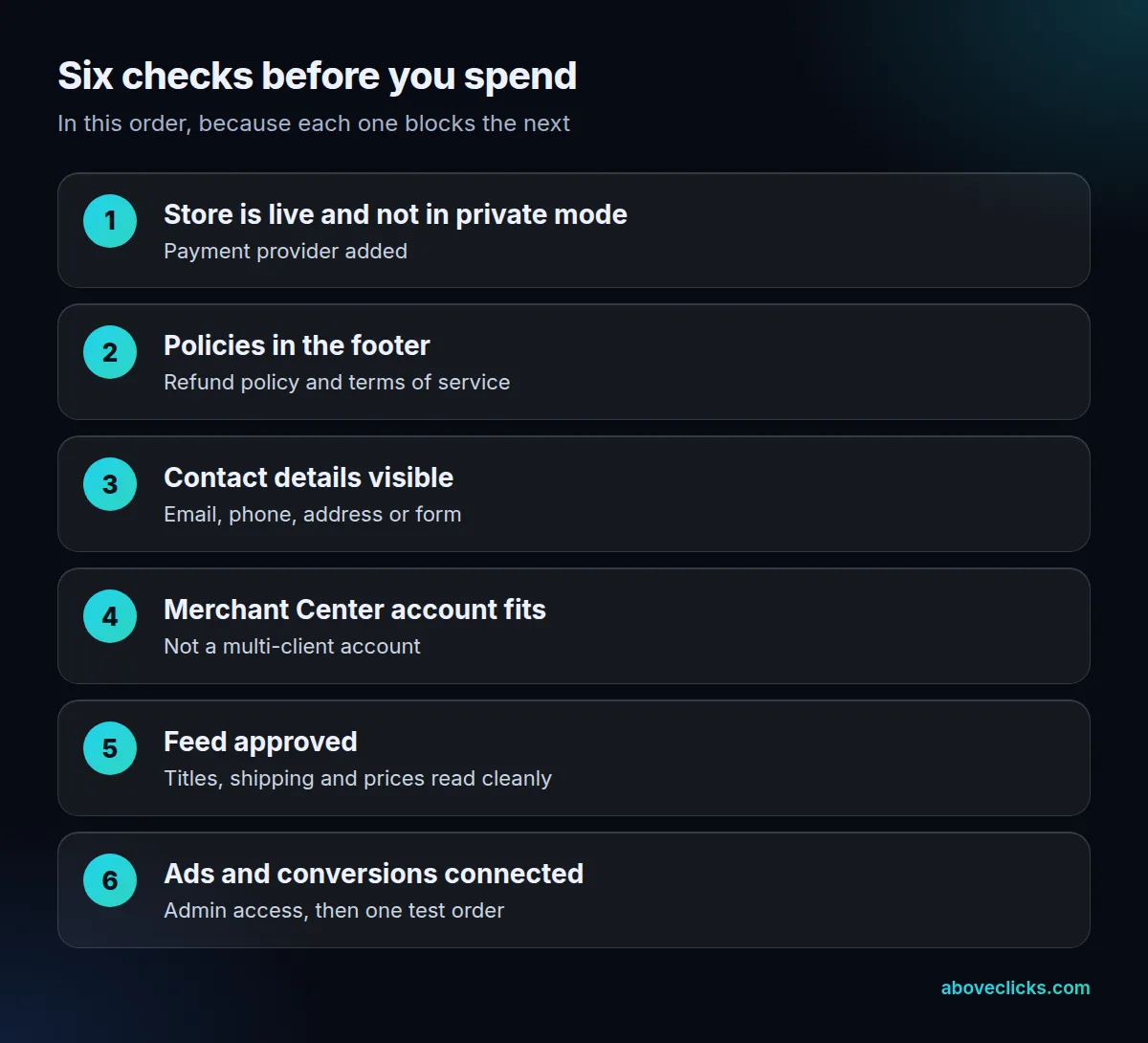
Here is what each check means in practice:
- Store live and public. Shopify’s requirements page says your store can’t be in private mode and needs a valid payment provider.
- Policies in the footer. Add 2 pages to the footer menu: a refund policy and terms of service.
- Contact details visible. Show at least one of an email address, phone number, mailing address or contact form.
- A Merchant Center account that fits. A multi-client account can’t be used to sync products with the channel.
- A feed Google approves. Products sync in a separate step after the account is connected, and shipping must be set up the way Google expects.
- Ads and conversions connected. The Google account you connect must be an administrator of the Google Ads account, and Shopify’s guide says that account must already exist.
When you connect Merchant Center, Shopify asks you to verify yourself with a 6-digit code sent by text message. Use the phone number of the person who will own the account, not an agency’s, because Shopify’s steps ask the Merchant Center account owner to verify. That keeps your Google Ads Shopify setup under your control.
What does the Google & YouTube channel sync, and what stays manual?
It syncs your domain, your product information and relevant store settings such as shipping and taxes. It does not choose your budget, goal or ad copy. Those stay with you, or with whoever runs the account.
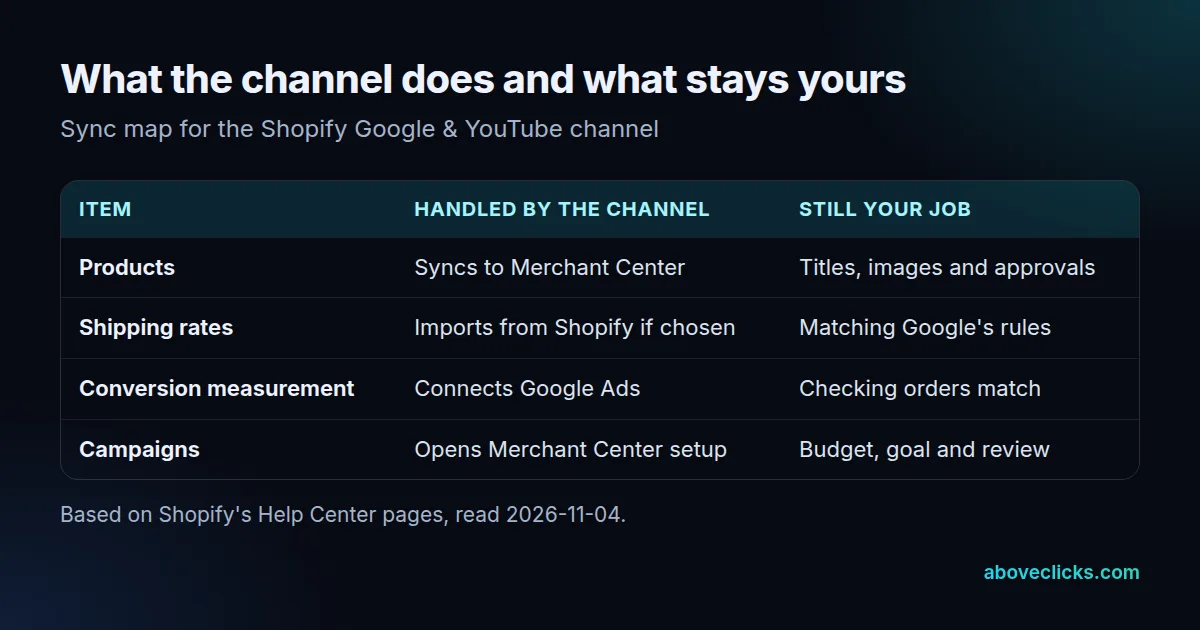
One line in the requirements deserves a pause. If you already have a product feed set up in Merchant Center, the channel overwrites it. If your Google Ads for Shopify store relies on supplemental feeds or custom labels, write down how they work before you connect, and rebuild them afterward. Shopify also warns that changes made later in Merchant Center can affect the channel’s ability to sync and any Performance Max campaigns you’re running.
Product titles are the part of the feed you control most. Google’s title attribute allows 1 to 150 characters and recommends using all of them for the details that define the product. Our feed optimization guide shows how to rewrite one.
Which Google Ads campaign type suits a Shopify store?
Start with Performance Max if the store has a clean feed and a clear sales goal, and add a Search campaign for the queries you must own. Shopify says you create Performance Max campaigns in Merchant Center, reached from the channel in your admin.
Shopify also notes that Performance Max replaced Smart Shopping, and that you can no longer create Smart Shopping campaigns. Google’s Performance Max guide recommends it when you have specific conversion goals such as online sales, and when you want to reach all of Google’s channels from a single campaign.
Two rules from that page matter for a store:
- A Search campaign with an exact match keyword is prioritized over Performance Max when a query hits that keyword. Use this for your brand name.
- If you turn on Final URL expansion, Google may replace your landing page with a more relevant one, so check that every product page is ready to receive traffic.
Example with an invented store of 200 products: start with the 20 products that have the best margin and the cleanest titles, using product filters in the asset group, which Google’s page suggests for matching the product shown to the landing page. Widen the range once those 20 products have sales. If you’re unsure which to run first, our comparison of Performance Max and standard Shopping lays out the trade-offs.
Do Google Ads work for Shopify stores?
Google Ads for Shopify stores can work, when the margin leaves room for the ad cost and the feed is clean. Google Ads for a Shopify store is a sales channel with a price, so test it against your own numbers rather than a general claim.
Three conditions decide whether Google Ads for your Shopify store pays back. First, margin: a store with a 25% margin before ad costs needs a ROAS of 4 (1 ÷ 0.25) just to break even, while a 50% margin needs 2. Second, volume: you need enough searches for your products that a small test budget can buy clicks. Third, patience: Google counts conversions for up to 30 days after a click by default, so a campaign judged after 3 days is judged early. The margin figures are an invented example, not a benchmark.
If the break-even ROAS looks out of reach, fix the offer, the product page or the price first, then come back to Google Ads for Shopify with a better case.
How much should you spend on Google Ads for Shopify?
Work backward from margin: find the revenue your budget must return to break even, then set a daily budget that can reach it. Google sets the monthly limit at 30.4 times your average daily budget.
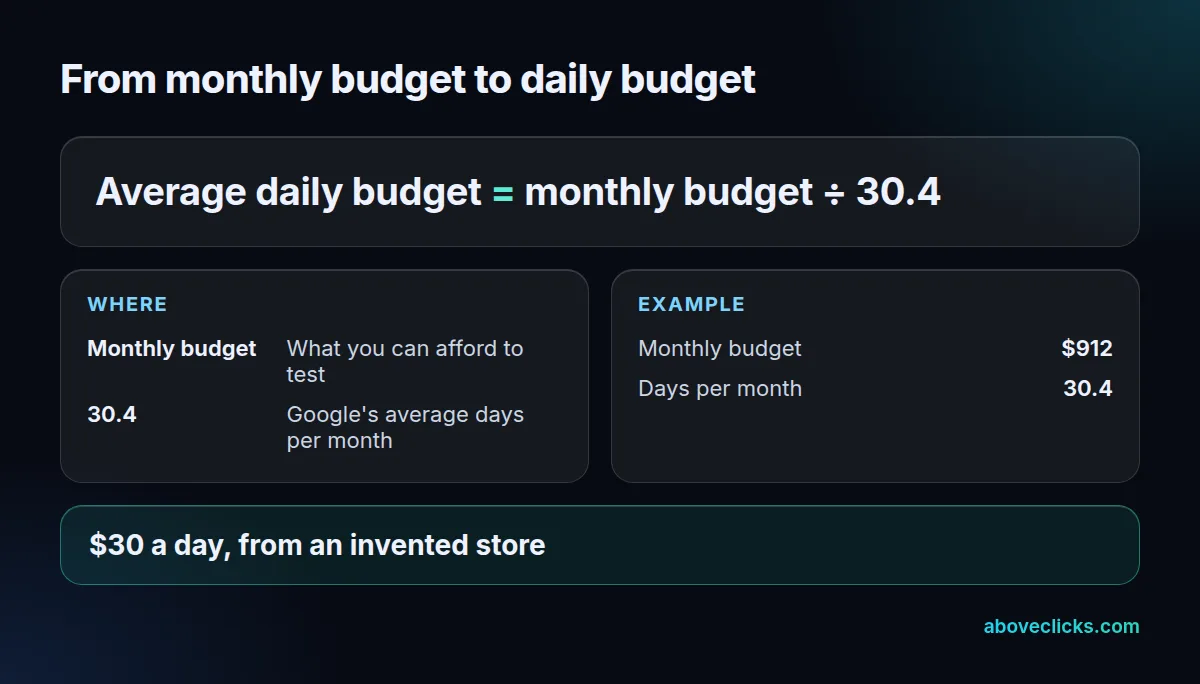
That 30.4 comes from Google’s average daily budget page, which divides a $304 monthly spend by 30.4 to get $10 a day. Example with an invented store: it sells at a $60 average order with a 40% margin before ad costs, so each order leaves $24. Break-even ROAS is 1 ÷ 0.40, or 2.5. A $912 test month returns break-even at $2,280 in sales, which is 38 orders. That is about 1.25 orders a day at $30 a day.
If you can’t see how 38 orders a month could happen from your traffic, the budget is too small for the test or the margin is too thin for paid search. Our Google Shopping ads cost guide covers what else adds to the bill.
How do you track Google Ads conversions on Shopify?
Connect Google Ads inside the channel, then confirm that one test order appears as a conversion. Google counts a click-through conversion for 30 days by default, so you read results over weeks.
Shopify’s connection guide lists Google Ads conversion measurement as its own step. Google’s conversion window page says the click-through window defaults to 30 days, can be set from 1 to 30, 60 or 90 days depending on the source, and that the engaged-view default is 3 days.
Three habits keep Google Ads Shopify numbers honest:
- Place one small test order and look for it in Google Ads, not just in Shopify.
- Compare Shopify’s order count with Google Ads conversions for the same dates, and expect gaps from the window and from other channels.
- Don’t change bids or budgets in the first days of a new campaign, because early clicks can still convert up to 30 days later.
Our PPC tracking guide goes deeper on tags and mismatches.
What goes wrong with Google Ads for Shopify stores?
On a Shopify store it is mostly the same few things: a missing policy, an overwritten feed, a feed that Google disapproves, and tracking nobody tested. All of them show up before you spend a dollar if you check in order.
- Policy or contact gaps. Missing footer policies or contact details block the channel itself, per Shopify’s requirements, so Google Ads for your Shopify store never starts.
- Feed overwritten. Custom labels and rules from an old Merchant Center feed disappear when the channel connects.
- Shipping mismatch. Shopify notes that offers without shipping information can be disapproved in countries that require it on Ads and Free listings.
- Thin titles. A title that says only “Blue Mug” wastes most of its 150 characters.
- Untested tracking. A campaign with no verified conversion trains on nothing.
The order we use for Google Ads for Shopify is simple: policies and contact details, then the feed, then one test order, then budget. If you’d like a second pair of eyes on the account, our Google Ads service starts with a review of exactly these points, and the free audit is a read-only first look. More guides are in Google Ads.