Google Shopping feed optimization is the work of making your product data complete, accurate and written the way people search. Shopping ads and Performance Max build your ads from that data, not from keywords. So the product feed decides which searches you can appear for, what the ad says and whether it shows at all.
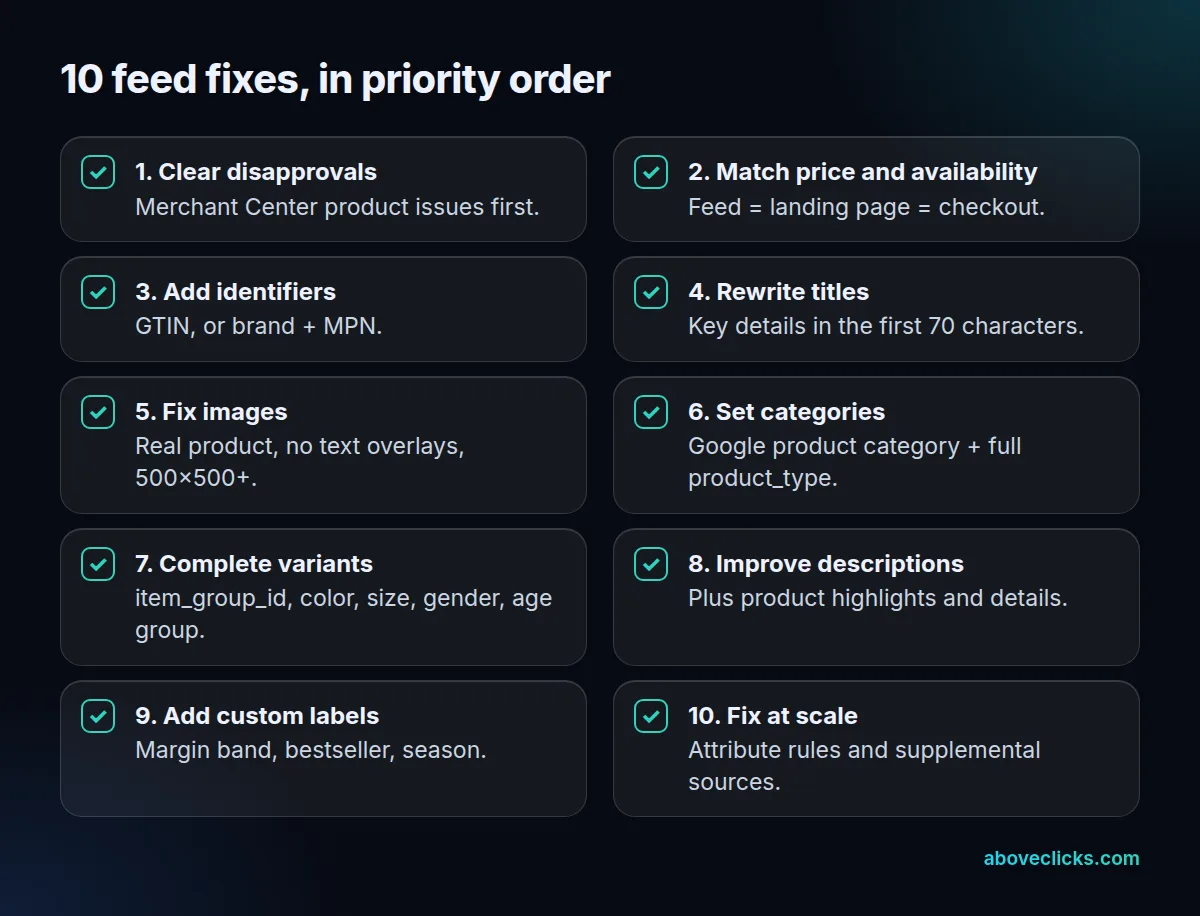
Below are 10 fixes in the order that unblocks the most sales first. Each one is tied to a rule in Google’s product data specification, and there’s a worked example of a title rewrite.
What Google Shopping feed optimization means
Your Google Shopping feed is the list of products you send to Google Merchant Center: titles, prices, images, identifiers and dozens of other attributes. Google uses this data to match products to searches and to build ads and free listings.
Shopping feed optimization means three things, in this order:
- Eligibility: every product you want to advertise is approved.
- Accuracy: prices, availability and identifiers in the product feed match what’s on your site.
- Relevance: titles, categories and attributes describe the product in the words people search with.
Most shopping feed optimization guides jump straight to the third. But a perfect title on a disapproved product earns nothing, so start at the top.
The 10 fixes, in priority order
1. Clear disapprovals and product issues
Open Merchant Center and check product status. Google reviews products after you add them and flags issues that limit or block where they can show. Sort the issues by how many products each one affects, and fix the biggest first.
2. Match price and availability to your site
Google’s specification asks you to match the price in your product feed with the price on the landing page, in structured data and at checkout. Availability has to match too. Google lists conflicting data between your feed and your website among the common problems that can stop products from showing. In practice, this conflict often comes from sale prices or currency settings that the feed doesn’t pick up. If you run on-site product schema markup, make sure it shows the same price as the Google Shopping feed.
3. Add unique product identifiers
Google calls the GTIN “strongly recommended if available” and says products without unique identifiers are difficult to classify and may not be eligible for all Shopping features. The rules:
- Product has a GTIN (the barcode number from the manufacturer): submit it. If a product has a GTIN and you don’t submit it, Google says it could be disapproved. Never guess one: Google asks for a GTIN only when you’re sure it’s correct, and missing or incorrect GTINs may limit visibility.
- No GTIN: submit the brand and MPN (manufacturer part number).
- No identifiers at all, for example handmade or custom goods: set identifier_exists to “no”. Don’t use “no” for products that do have identifiers, or they may be disapproved.
On Shopify, the GTIN goes in the barcode field of each variant, and brand and MPN go in the Google & YouTube channel’s product fields. Our GTIN glossary entry covers the formats.
4. Rewrite titles for search
Titles do the most work in Google Shopping feed optimization. Google’s title guidance says to use up to 150 characters, put the most important details first, and include keywords such as the product name, brand and specific features. Users usually notice only the first 70 characters or fewer.
A template that works for most stores:
Brand + gender or audience + product type + key feature + color + size + material
Change the order by category. For electronics the model number matters; for furniture, dimensions. Never add promotional text such as “free shipping” or write in all capitals. Google’s rules forbid both.
One newer rule: if a title was written by generative AI, Google asks you to submit it in the structured_title attribute with the trained_algorithmic_media value, not in the plain title attribute.
5. Fix images
The main image is the first thing a shopper sees. Google’s rules: show the product accurately, don’t scale up small images or submit thumbnails, and don’t add promotional text, watermarks or borders. Google has also announced a minimum image size of 500 × 500 pixels for all product images, enforced from January 31, 2027. Check your smallest images now. Add extra angles with additional_image_link.
6. Set the category and product type
Add a Google product category to each product; Shopify notes that if you don’t, Google assigns one automatically and you might see errors. Then set product_type with your own full category path, such as “Home > Women > Dresses > Maxi Dresses”. Google uses only the first product type value to organize bidding and reporting in Shopping campaigns, so make that one count.
7. Complete variant attributes
For clothing sold in the US, Google requires age group, gender and color, and variants need an item_group_id that links them. Size matters for apparel too. On Shopify, product options and variants need to be in English to sync with Google. Without these attributes, a shopper searching “women’s navy rain jacket size M” can’t be matched to the exact variant.
8. Improve descriptions, highlights and details
Descriptions can run to 5,000 characters. Describe the product, not your store, and skip promotional text. Two optional attributes add structure: product_highlight (2 to 100 short highlights, each up to 150 characters) and product_detail for technical specifications. Don’t repeat the same information across the three.
9. Add custom labels for bidding
custom_label_0 to custom_label_4 let you tag products with values up to 100 characters that shoppers never see. Use them for what your campaigns need to split by: margin band, bestseller, season, clearance. This is what makes margin-based bidding possible. Our guide to target ROAS bidding shows how different margins need different targets.
If you want Google to report on profit too, the optional cost_of_goods_sold attribute lets you send product cost. Google says it gives you insight into metrics such as gross margin.
10. Fix at scale with attribute rules
Editing a large product feed by hand doesn’t scale. Merchant Center’s attribute rules, formerly called feed rules, can transform data as it comes in: build titles from several fields, add a brand prefix, or fill custom labels. They need the “Advanced data source management” add-on, and you save rules as a draft, test them, then apply them. A supplemental data source, such as a Google Sheet keyed by product ID, is another way to add custom labels without touching your store.
Worked example: rewriting one product title
Example: a hypothetical outdoor brand, Northpine, sells a men’s rain jacket. Its Shopify title, which syncs to the Google Shopping feed as-is, is “Trailhead Jacket”.

The old title is 16 characters and contains no word a shopper would search for except “jacket”. In our client work, titles are where we typically start a feed review, after disapprovals and prices. The new one is 95 characters:
Northpine Men’s Waterproof Rain Jacket – Navy, Size L – Packable Hooded Shell in Recycled Nylon
The brand, gender, product type, key feature, color and size all sit inside the first 54 characters, well within the 70 that Google says shoppers usually notice. The extra detail after that still helps matching. The title also has to describe the product on the landing page, so the store updates the product page heading to match, or changes only the feed title with an attribute rule.
Repeat this for your best-selling products first, because that’s where most of your ad spend goes. Then work down the catalog in batches, or turn the pattern into an attribute rule.
Where to make the changes
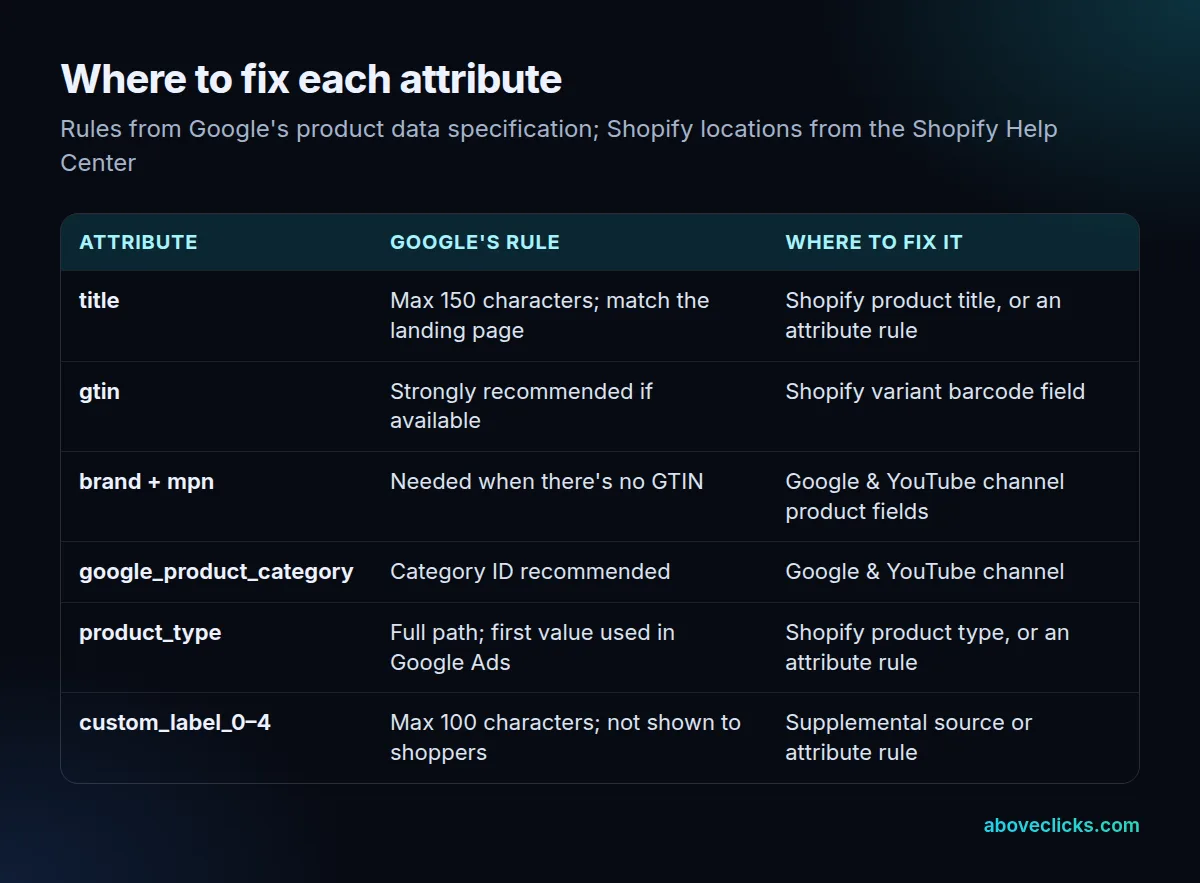
There are three places to change product feed data, and the right one depends on the attribute:
- In your store: title, description, price, images, product type and the variant barcode. Changes here also update your website, which keeps feed and landing page in sync.
- In the Shopify Google & YouTube channel: Google product category, brand and MPN for products without a GTIN, and apparel attributes.
- In Merchant Center: attribute rules and supplemental sources for anything feed-only, such as custom labels or a title format you don’t want on the site.
A monthly merchant center feed optimization routine
Google product feed optimization isn’t a one-off job. New products arrive, prices change and Google updates its rules. A routine that keeps the feed healthy:
- Weekly: check Merchant Center for new product issues and fix them.
- Monthly: review product feed titles and images for new products, update custom labels for margin and season, and check that the feed price matches the site for a sample of products.
- Quarterly: read the Merchant Center announcements for spec changes, like the 2027 image-size rule.
Common mistakes
- Keyword stuffing titles. Google wants keywords that describe the product, not a list of search terms.
- Feed titles that don’t match the page. Google asks for titles that match the landing page.
- Setting identifier_exists to “no” to skip the work. It can get products with real identifiers disapproved.
- Ignoring variants. One title for six colors means five colors can’t match a color search.
- Fixing the product feed but not the campaigns. Once margin labels exist, use them. Our Performance Max vs Standard Shopping comparison shows how to split products between campaigns.
For the whole picture of campaigns, bidding and budget, read the Google Ads for ecommerce guide. If you’d like a second pair of eyes on your Google Shopping feed, our Google Ads service starts every account review with the product data.