Google Ads for ecommerce works best when you treat it as a margin problem first and a campaign problem second. Before you choose between Performance Max and Shopping campaigns, work out each product group’s break-even return, track purchases with real values and get your product feed approved.
This guide gives you a 7-step launch order, a worked example for a hypothetical store with three product groups, and a decision table for picking campaign types. Every platform claim links to Google’s own documentation.
How does Google Ads for ecommerce work?
Most of what an online store buys on Google is Shopping ads. They show a product photo, title, price and your store name, and they’re built from your product data rather than from keywords. You submit that data through Google Merchant Center, and Google uses it to match searches to your products (About Shopping ads, Google Ads Help).
You run those ads through three campaign types:
- Performance Max with a Merchant Center feed. One campaign that can show your products and ads across Google’s channels: the Shopping tab, Search, Images, YouTube, Display, Gmail and Maps. Bidding is automated. Google describes it as a single campaign with access to all Google Ads inventory, including YouTube, Display, Search, Discover, Gmail and Maps (About Performance Max). See our Performance Max glossary entry for the short version.
- Standard Shopping. Shopping ads only, on the Shopping tab, Search, Images and, if you opt in, search partners. You can use Target ROAS, Maximize conversion value, Maximize clicks or manual CPC bids.
- Search campaigns. Text ads triggered by keywords. For stores, these are mostly brand searches and a small set of high-intent product queries.
How they interact matters. Since October 2024, Performance Max is no longer automatically prioritized over Standard Shopping when both target the same products; Ad Rank decides which one serves. A Search campaign with a keyword that exactly matches the query is still preferred over Performance Max (how Performance Max interacts with other campaigns).
Two more points that shape any Google Ads strategy for ecommerce:
- Your feed is your targeting. Weak titles, missing identifiers or wrong prices cost you more than any bid setting.
- Smart Bidding learns from the values you send. If purchase values are wrong or double counted, the bidding chases the wrong number.
What do you need to run Google Ads?
Google Ads for ecommerce needs three accounts working together, and getting them linked takes longer than most people expect:
- A Google Ads account with billing set up, where campaigns, budgets and bids live.
- A Google Merchant Center account with your products submitted and your website claimed. Shopping ads can’t run without it.
- A link between the two. Google Ads Help documents how to link a Google Ads account to Merchant Center, and the Shopify channel can do it during setup.
Google Analytics 4 is optional for running ads, but it helps you compare Google’s numbers with your other channels. Set all of this up a week before you plan to spend, because product reviews and account checks take time.
How does Google Ads charge you?
Standard Shopping charges per click: you pay only when someone clicks a Shopping ad through to your site, according to Google’s comparison of the two campaign types. With Performance Max, Google says you pay only for the performance of your campaigns, for example clicks or impressions.
So your real cost is clicks multiplied by cost per click, and your return depends on how many of those clicks turn into orders and how much each order is worth. For example, 500 clicks at an average $1.20 cost $600. At a 2% conversion rate that’s 10 orders, so each order cost $60 in ads. That’s why the order value and conversion rate on your product pages matter as much as anything inside Google Ads.
The 7-step launch order for Google Ads
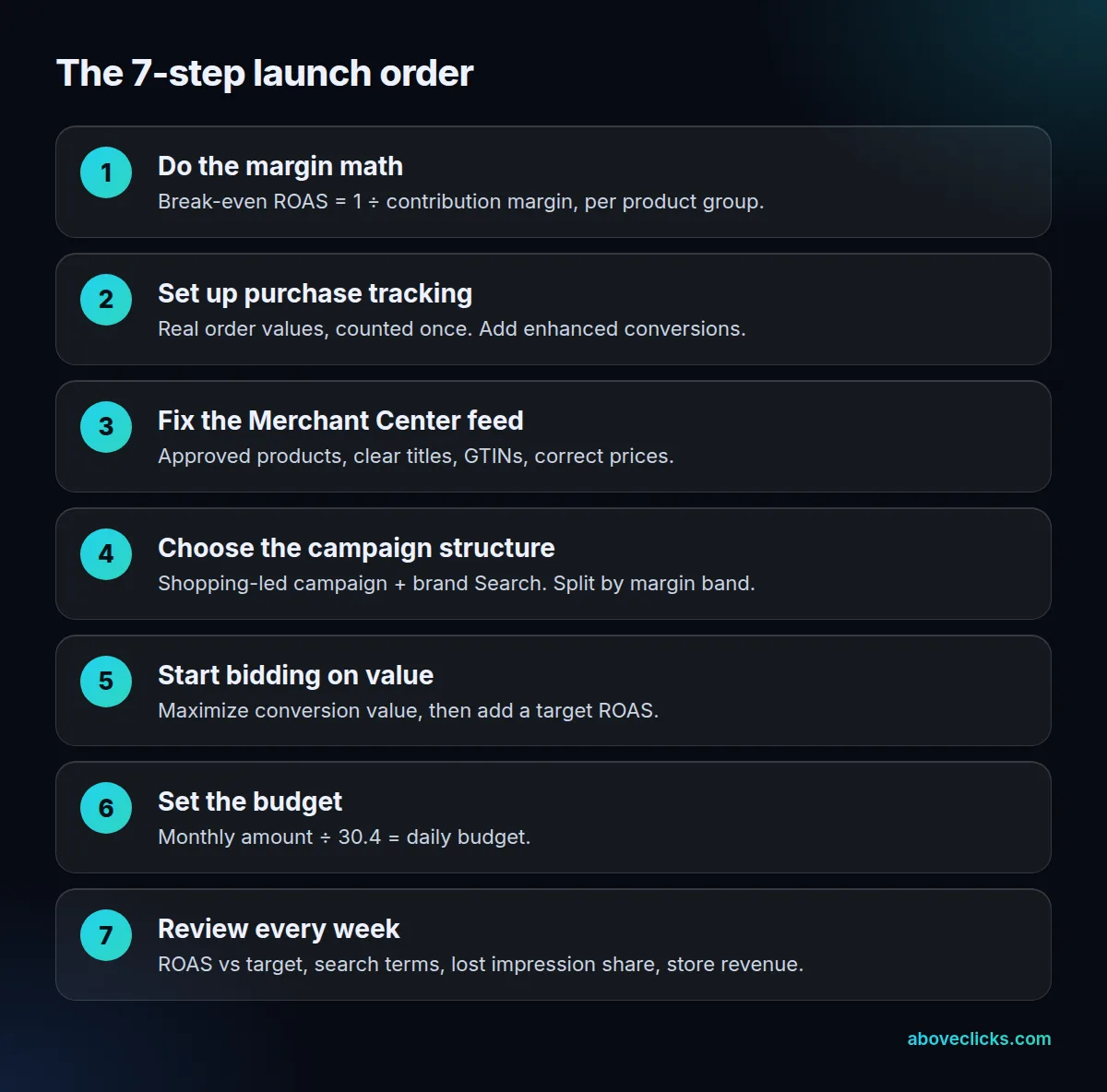
The order matters more than any single setting. In our client work, the tracking check comes before any campaign is built, for exactly this reason. Skipping ahead, for example launching Performance Max before tracking is checked, is how stores end up with a month of spend and data they can’t trust.
Step 1: Do the margin math
Every target in your Google Ads account should come from one number: contribution margin. It’s what’s left of an order after product cost, shipping, payment fees, discounts and returns, as a share of the order value. Fixed costs like rent and salaries stay out. If the term is new, see contribution margin explained.
From it you get two numbers:
- Break-even ROAS = 1 ÷ contribution margin. Below this, ad-driven orders lose money on the first purchase.
- Target ROAS = 1 ÷ (contribution margin − the profit margin you want). This keeps a profit after ad spend.
Work these out per product group, not for the store as a whole. Margins usually differ a lot between categories, and the worked example below shows why that changes your campaign structure. Our break-even ROAS calculator does the math, and the return on ad spend glossary entry covers the definition.
Step 2: Set up purchase tracking with real values
Google’s guidance for retailers strongly recommends sending transaction-specific values for each conversion when your products have different prices. In practice that means:
- One purchase conversion action set as the primary goal, firing once per order.
- The order value passed with each purchase, and the same rule applied every time (with or without tax and shipping, but always the same).
- Enhanced conversions turned on. Google describes it as supplementing your conversion tags with hashed first-party data, such as an email address, to improve measurement accuracy.
On Shopify, the Google & YouTube channel connects your store to Google Ads, Merchant Center and Google Analytics 4 from one place. Whatever the platform, place a test order and confirm it appears once, with the right value, before you spend real money.
Step 3: Fix the Merchant Center feed
Your product data decides which searches your products can show for and how the ads look. Google’s product data specification lists the required and recommended attributes. Start with these:
- Every product approved. Check the product status in Merchant Center and fix disapprovals first.
- Titles that match how people search. Product type, brand, and the attributes buyers compare, such as size, color or material.
- Unique product identifiers. Google says products submitted without them are hard to classify and may not be eligible for all Shopping features. Our GTIN glossary entry explains when you need one.
- Prices and availability that match the landing page. Mismatches lead to disapprovals.
- Custom labels. Google suggests labels such as “bestseller” to segment products. We add a margin band (low, mid, high) so campaigns can split by profitability.
Our guide to Google Shopping feed optimization goes through each attribute with before-and-after examples.
Step 4: Choose the campaign structure
For most stores, a sensible first Google Ads structure is small:
- One Shopping-led campaign (Performance Max or Standard Shopping) for the catalog, or one per margin band when targets differ a lot.
- One brand Search campaign with your store name as exact match keywords.
- Optional: a non-brand Search campaign for a handful of high-intent queries with their own landing pages.
Google recommends consolidating Performance Max where you can, and says performance usually improves with fewer, larger campaigns that get more conversions. Google also lists different ROAS targets or budgets as a good reason for separate campaigns. Margin bands are exactly that case.
Choosing between Performance Max and Standard Shopping is the decision stores ask us about most. Our Performance Max vs Standard Shopping comparison covers it in depth, including a hybrid setup.
Step 5: Start bidding on value, then add a target
New campaigns rarely have enough data for a target on day one. A common path for Google Shopping ads:
- Start with Maximize conversion value (no target) so the campaign spends its budget on the most valuable sales it can find.
- Once a campaign has enough conversions, add a target ROAS. Google lists at least 15 conversions in the past 30 days for Search and Shopping campaigns, and recommends reporting values for 4 weeks or 1–2 conversion cycles, whichever is longer (About Target ROAS bidding).
- Set the first target close to what the campaign already achieves, then move it in small steps.
Never set the target below your break-even ROAS unless you’ve decided to buy first orders at a loss because repeat orders pay it back. Our guide to target ROAS bidding has the full 5-step method for picking the number.
Step 6: Set the budget
Pick a monthly test amount you can afford to lose while the account learns. Then convert it to a daily budget by dividing by 30.4, because Google won’t charge a campaign more than its average daily budget times 30.4 in a monthly billing cycle. On a given day, a campaign can spend up to 2 times its average daily budget.
A budget that’s too small for the target slows learning. If a campaign shows “Limited by budget” and keeps hitting its target, raise the budget before you touch the target.
Step 7: Review every week
A 30-minute weekly review catches most problems early. Look at the last 14–30 days, leaving out the last few days while late conversions come in:
- Actual ROAS against the average target ROAS for each campaign.
- The search terms report for Search and Shopping. Add irrelevant queries as negative keywords.
- Impression share and the share lost to budget, which shows whether money or Ad Rank is the limit.
- Quality Score on Search keywords. Google calls it a diagnostic tool on a 1–10 scale, not an input in the auction, so use it to find weak ads or landing pages.
- Store revenue against Google’s numbers. If the gap between Shopify or WooCommerce revenue and Google’s conversion value grows, fix tracking before changing bids.
Worked example: one store, three margins
Here’s how the 7 steps play out for a hypothetical store. Example: an outdoor gear store sells tents, jackets and accessories. The owner wants an 8% profit on ad-driven orders after ad spend.
| Product group | Contribution margin | Break-even ROAS | Target ROAS (8% profit) |
|---|---|---|---|
| Tents | 30% | 333% (1 ÷ 0.30) | 455% (1 ÷ 0.22) |
| Jackets | 45% | 222% (1 ÷ 0.45) | 270% (1 ÷ 0.37) |
| Accessories | 60% | 167% (1 ÷ 0.60) | 192% (1 ÷ 0.52) |
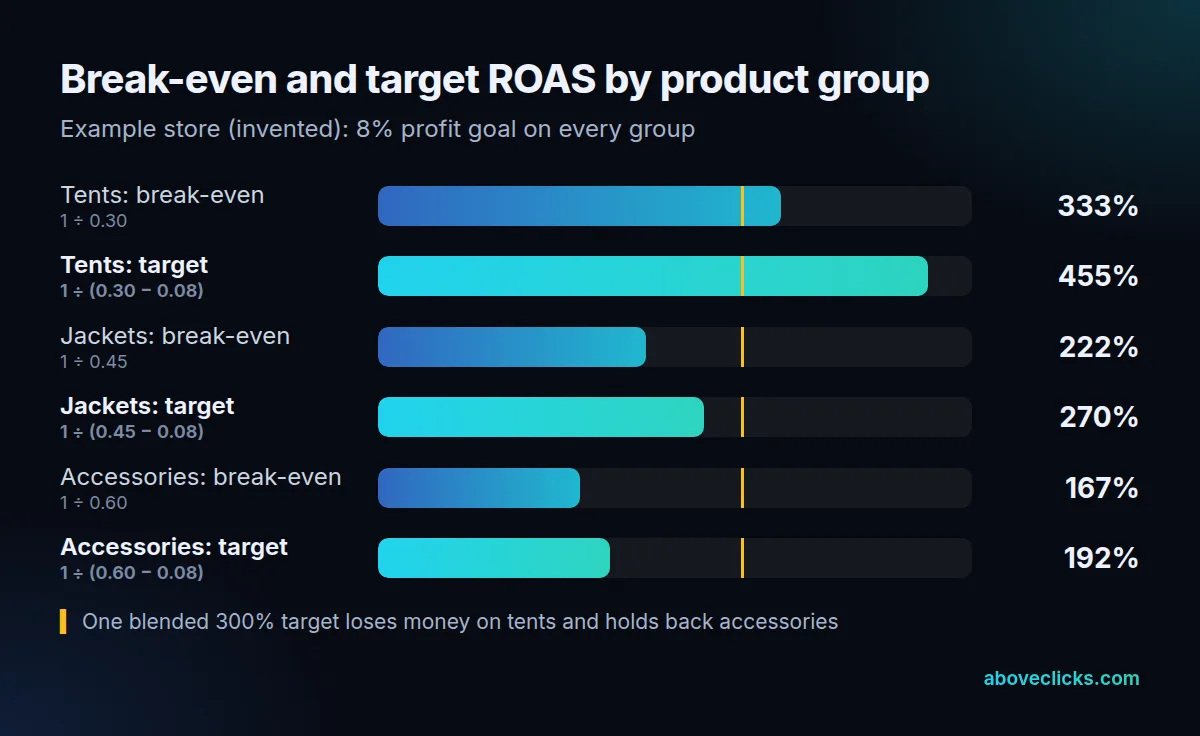
The chart shows the problem with a single target. Say the store runs one Shopping campaign with a 300% target ROAS. That’s below the tents’ break-even of 333%, so every tent sale at the target loses money before fixed costs. It’s also well above the 192% that accessories need, so Google bids lower on accessory searches that would have been profitable.
The fix uses a custom label for margin band and three campaigns:
- Low margin (tents): target ROAS 455%. Expect fewer sales; that’s correct for a 30% margin.
- Mid margin (jackets): target ROAS 270%.
- High margin (accessories): target ROAS 192%.
The split only works if each campaign still gets enough conversions to learn. If the tents campaign would get only a handful of orders a month, merge it with jackets and use the higher of the two targets until volume grows.
Budget: the owner sets aside $6,000 for the month. $6,000 ÷ 30.4 = about $197 a day across the three campaigns. On a busy day spend could reach about $395, but over the month the account won’t be charged more than about $6,000. The owner gives accessories the largest share because each dollar there has the most room above break-even, then moves budget weekly toward whichever campaign beats its target while it’s limited by budget.
After 30 days, the owner reads the three campaigns against their own targets, not against each other. Tents at 470% actual ROAS are doing their job even though the number looks worse than accessories at 210%. Each one beats its own target, so each one earns a little more budget. A campaign that sits below its break-even line for two full conversion cycles gets its feed and landing pages checked before anything else changes.
Two checks keep the example honest. First, the margins come from the store’s own costs, not from a benchmark. Second, the targets are a ceiling for profit, not a promise of results. The weekly review decides whether each campaign earns more budget.
Which Google Ads campaign types suit a store?
The right mix of Shopping ads and Search depends on your tracking, feed quality and how much control you need. This table summarizes the trade-offs, using Google’s own descriptions of each campaign type.
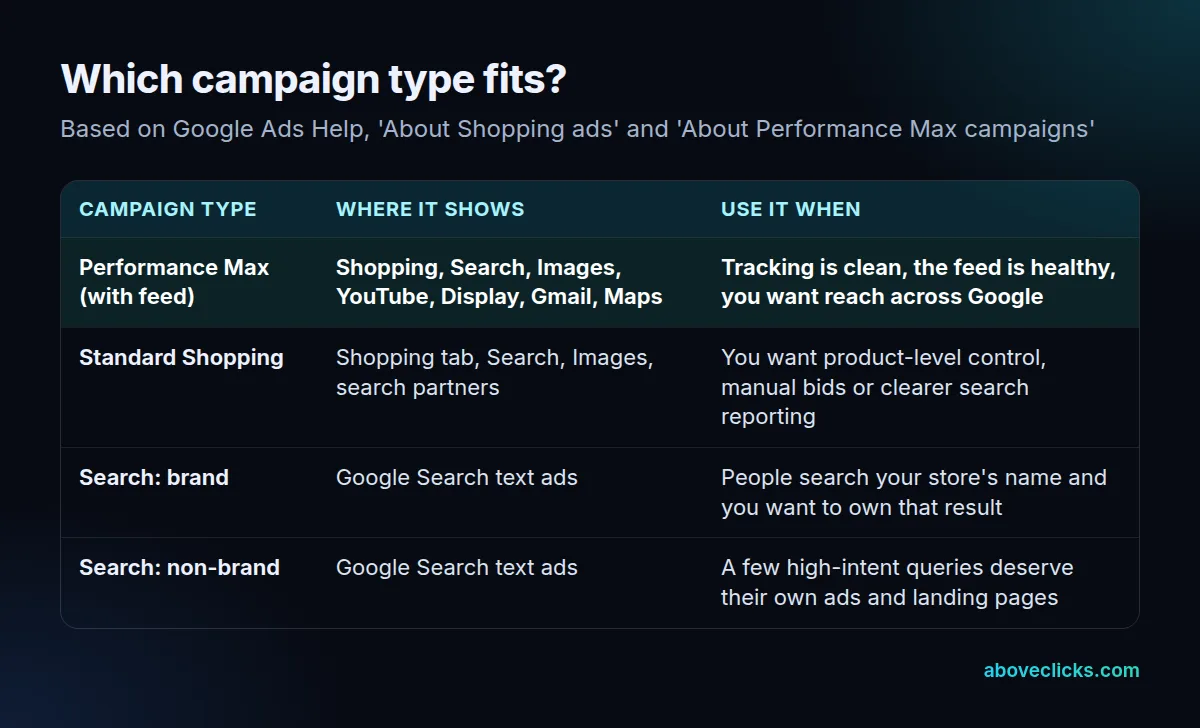
How to read it:
- Performance Max suits stores with clean tracking, a healthy feed and good images or video. It gives you the widest reach and less control. Google provides brand exclusions, negative keywords and search themes to steer it.
- Standard Shopping suits stores that want to see and control bids at the product level, or whose data is too thin for full automation. When the same product sits in several Standard Shopping campaigns, the campaign priority setting (Low, Medium or High) decides which one bids.
- Brand Search is cheap insurance for most stores. If you skip it, check who shows up when people search your store’s name.
- Non-brand Search works for a short list of queries where a dedicated landing page beats a product page.
Google Ads also lets you steer Performance Max more than it used to. You can add negative keywords and brand exclusions at the campaign level, and Google’s documentation describes channel controls that set priority tiers for search partners and the Display Network. Use them when the reports show spend going somewhere you don’t want it.
Not sure? Run Performance Max and Standard Shopping as an experiment on the same products and let your own numbers decide.
A Google Ads strategy for ecommerce stores at each stage
The same 7 steps apply to everyone, but the emphasis shifts with the store’s size and data.
New store, little data. Keep it to one Shopping-led campaign and a brand Search campaign. Bid with Maximize conversion value and judge results against break-even ROAS. Spend most of your time on the feed and tracking, because they decide how fast the account learns.
Growing store, steady orders. Add target ROAS once campaigns pass Google’s conversion thresholds. Split by margin band if targets differ a lot, as the worked example does when it turns $6,000 of spend into 3 campaigns with targets from 192% to 455%. Start testing Performance Max against Standard Shopping, and use the search terms report to find queries worth their own Search ads.
Established store, large catalog. Segment with custom labels for margin, bestsellers and seasonal products. Google suggests seasonality adjustments for short events with a large expected change in conversion rate, such as a three-day sale, and manual target changes for longer promotions. Reconcile Google’s numbers with store revenue every month.
What are the most common Google Ads mistakes?
These are the problems we check for first in a Google Ads audit:
- Launching before tracking is right. Duplicate purchase tags or missing values teach Smart Bidding the wrong lesson from day one.
- One target ROAS for the whole catalog. As the worked example shows, it overbids low-margin products and underbids high-margin ones.
- Copying a target from a blog or a peer. A 400% target is right for a 25% margin and too strict for a 60% one.
- Ignoring feed errors. Disapproved products can’t appear in Shopping ads, whatever the budget.
- Too many small campaigns. Each one learns from its own data, so splitting thinly slows everything down.
- Changing targets and budgets every few days. Google says a new target needs 1–2 conversion cycles to settle.
- Reading ROAS without profit. A higher ROAS with half the orders can mean less profit. Check both.
What the weekly review looks like in practice
A simple routine for Google Shopping ads and Search, in the order we do it:
- Open the campaigns view for the last 30 days, excluding the last 3, and compare actual ROAS with the average target ROAS column.
- Check budget status. Campaigns that beat their target while limited by budget are first in line for more money.
- Read the search terms report and add irrelevant queries as negatives. For Shopping ads these are often other brands, used or rental searches, or products you don’t sell.
- Check Merchant Center for new disapprovals and price mismatches.
- Compare Google’s conversion value with store revenue for the same dates.
Write down every change and its date. Without a change log, you can’t tell which edit moved the numbers two weeks later.
How Google Ads fits with Meta ads and SEO
Google Ads mostly captures demand that already exists: people searching for a product. Meta ads mostly create demand by showing products to people who weren’t looking yet. Organic search brings in the same high-intent shoppers as Shopping ads, without a cost per click.
For most stores the three work together:
- Meta introduces the product. Our Meta ads for ecommerce guide covers that side.
- Google Ads catches the people who then search for it, plus everyone already in the market.
- SEO lowers the cost of the same searches over time. See our ecommerce SEO guide.
Shared measurement matters more than channel credit. Compare total ad spend with total store revenue, as well as each platform’s own ROAS, because each platform tends to credit itself for the same order.
Where to go next
Each step above has a deeper guide:
- Campaign choice: Performance Max vs Standard Shopping.
- Feed: Google Shopping feed optimization.
- Bidding: how to set a target ROAS from your margins.
- Terms: Performance Max, GTIN, Quality Score, search terms report and impression share.
If you’d rather have someone check the setup first, our Google Ads management service starts with tracking, the feed and the margin math before any bid changes.