WordPress server side tracking means sending your site’s conversion data to ad and analytics platforms from a server you control, not only from the visitor’s browser. WordPress has no built-in tagging server, so the real choice is how your pages and orders feed one.
This guide covers what WordPress server side tracking is, the 3 ways to set it up on WordPress and WooCommerce, how to stop one purchase being counted twice, and a short list of checks. For the container build itself, see our GTM server side tracking guide. The store and order counts in the example are invented.
What is WordPress server side tracking?
It is server side tracking on a WordPress site: events reach a tagging server first, and that server forwards them to Google, Meta and others. Server containers come with 2 clients included, Google Analytics and Measurement Protocol. Google describes the server container as running on a server you control, not in the visitor’s browser.
Google’s introduction to server-side tagging says the server runs in your own Google Cloud project or another environment of your choosing. Only you can see the data on it until you choose to send it on, and you decide how it is shaped and where it is routed.
The browser still has a job: one purchase becomes 1 event in the browser and 1 event on the server. Something on the page has to send each event to the server. That is where WordPress comes in, and it is why server side tracking WordPress setups vary so much more than a plain container build. Our glossary entry on server side tagging has the short definition.
Does WordPress support server side tracking?
Not out of the box. WordPress core does not run a tagging server, but its hook system lets plugins and themes add code at set points, which is how every WordPress server side tracking setup feeds one.
The WordPress Plugin Handbook explains that hooks come in 2 types. Actions let you add data or change how WordPress operates, and filters change data as it passes through. A tag plugin, a theme function or a small custom plugin all use these hooks to print or send events.
So the question is never whether WordPress server side tracking is possible. It is which path you pick, who maintains it, and where the server lives. The next section compares the options. Whatever you pick, move the 4 to 5 events that ad platforms optimise on first: product view, add to cart, checkout start and purchase.
What are the 3 ways to set up server side tracking on WordPress?
A tag plugin, your own theme or hook code, or direct server calls from order hooks. They differ in what they can read, how much you maintain and how likely they are to send an event twice.
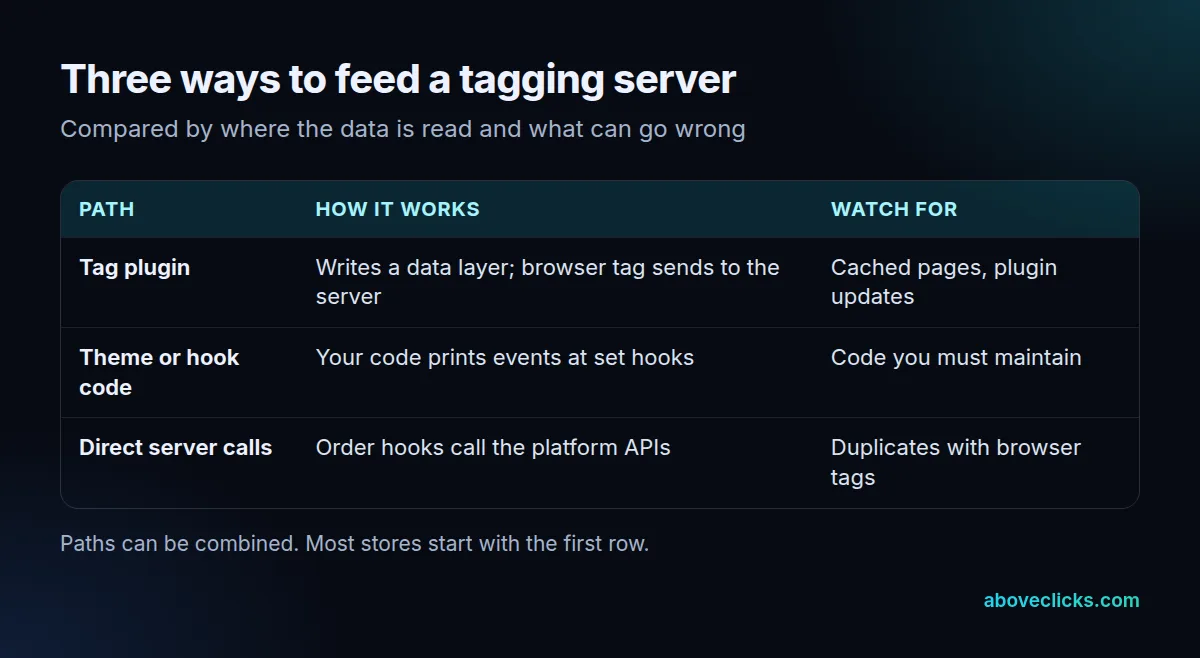
Tag plugin. For WordPress server side tracking, a plugin writes a data layer on each page and a browser tag sends events to your server container. It is the quickest start for a store and reads product and cart data well. The risks are cached pages and plugin updates that change the data layer.
Theme or hook code. Your developer prints events from specific hooks in the theme or a small plugin. You control exactly what is sent, but you own the code, and every theme change needs a recheck.
Direct server calls. An order hook sends the event from PHP straight to a platform API. Google’s Measurement Protocol page says it is meant to supplement, not replace, tagging with gtag or Tag Manager. That fits purchases that finish after the visit, such as a paid invoice or a refund, though Google’s session_id window is only 24 hours.
Most stores start WordPress server side tracking with the plugin, then add direct calls for the few events the browser misses. Our server side tracking service covers that kind of WordPress server side tracking build.
How does server side tracking work with WooCommerce?
In WordPress server side tracking on WooCommerce, the order is the anchor. WooCommerce holds one order number per purchase, so use it to build a single event ID, and send the purchase from the browser and the server with that same ID.
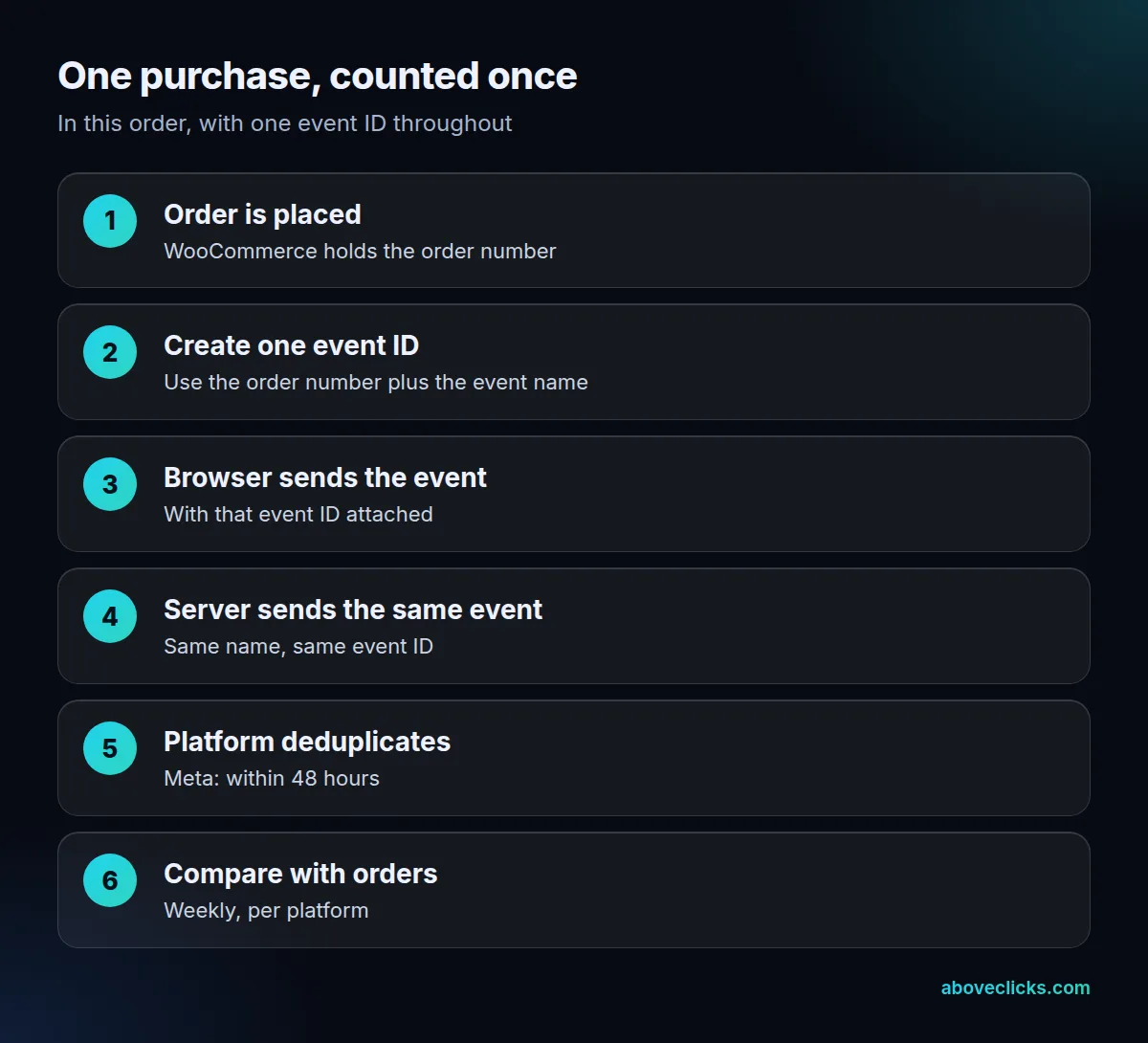
The flow in the figure keeps one rule: every copy of an event carries the same name and the same ID. Meta’s deduplication guide says a Pixel eventID must match the Conversions API event_id, and the Pixel event must match the event_name. Our Conversions API glossary entry explains the server side of that pair.
Direct server calls need one more field. Measurement Protocol events join earlier visits using the client_id, so the server needs it from the browser. Google adds that a session_id must be sent within 24 hours of the session’s start if you want the event tied to that session’s location and device details.
That means the browser has to hand over IDs. A common pattern is to store the client_id and the Meta browser ID with the order when it is placed, then read them back when the server event is sent later.
How do you avoid counting events twice?
Give every browser and server copy of an event the same name and ID, and send both within 48 hours. Meta discards the later copy only when those match; anything else counts as two events.
Meta’s guide says that if it finds the same server key (event_id and event_name) and browser key (eventID and event) for the same Pixel ID within 48 hours, it discards the subsequent event. It also notes that deduplication only applies to events received within 48 hours of the first one with that ID.
Three WordPress habits break WordPress server side tracking:
- Two plugins firing. A tag plugin and a separate ad-platform plugin may both send the purchase.
- Reloads. A customer reloading the thank-you page sends the browser event again, so store a flag on the order and send once.
- New IDs per call. Code that creates a random ID for each send gives the platform no match. Build the ID from the order number.
A worked example for WordPress server side tracking, on an invented WooCommerce store. In one week it takes 200 orders and the browser tag reports 171 purchases, which is 85.5% of orders. After adding the server event, the report shows 198 purchases, 99%. Had it shown 340, the missing deduplication would be the first thing to check. These numbers are the example’s own arithmetic, not a benchmark.
Is server side tracking WordPress worth it?
WordPress server side tracking is worth it when ad platforms feed on your conversions and your browser counts are visibly short of your orders. It is not worth it for a small store with little ad spend and no gap to close.
Start with the evidence in your own data: compare a week of orders with a week of purchase events in each platform. If they already match within a few percent, the server adds running work with little to gain. If the browser counts fall well short, the gap is worth closing: in the example above, the browser tag was 29 purchases (14.5%) short of 200 orders.
What drives the effort in server side tracking WordPress projects is not the plugin. It is the server, the testing and the upkeep. Google’s manual setup guide recommends provisioning the tagging server as a cluster for availability, scalability and performance. Someone has to own that server, watch it and restart it periodically so it has the latest code.
We do not quote hosting or vendor fees here; they change often and depend on traffic. Ask any provider for the monthly billing basis in writing, and compare it with the order gap you measured. If you want a second opinion on that gap, our free audit includes a tracking check.
Does server side tracking get around consent?
No. Moving the sending to a server does not change what the visitor agreed to. The server should receive the consent choice and honour it for each platform. Test it with 2 orders: one with consent accepted and one declined.
Treat consent as an input to your setup: the browser records the choice, passes it with the event, and the server only forwards what that choice allows. This is a design rule, not legal advice, and the rules differ by country, so ask your lawyer which apply to you. Our consent mode setup page shows how we wire the choice through.
One related point is the domain. Google recommends hosting the tagging server on the same origin as your site or on a subdomain. Its send data guide adds that to send in a true first-party context you also need to serve Google scripts from your own servers.
Before you switch any browser tag off in a WordPress server side tracking setup, run the checks below on a real test order.
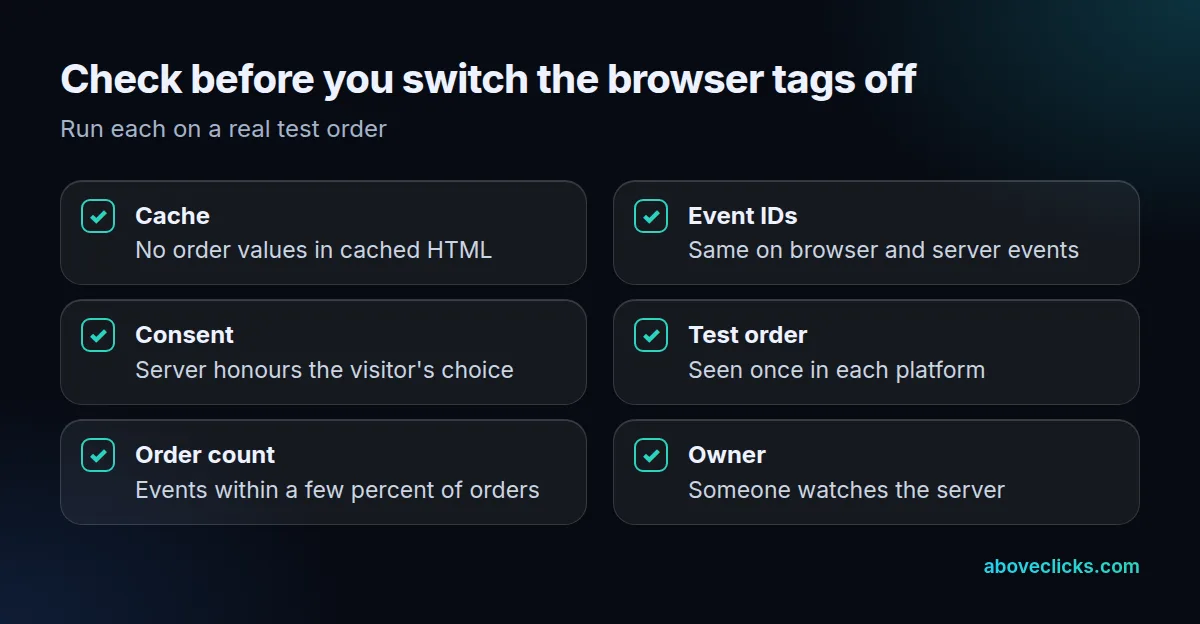
If the numbers still drift after the checks, start with the cache and the event IDs. Those two cause most gaps in server side tracking WordPress setups. Our tracking analytics service starts with exactly that audit, and more setup guides sit in our measurement guides.