GTM server side tracking moves your tag logic from the visitor’s browser to a server container you control, so one request from the page can be forwarded to analytics and ad platforms. Build it in a fixed order and test each step, or you will double count purchases.
This guide gives the seven setup steps, the order in which to move tags, the checks to run in preview, a gap test to run before you pay for servers, and the things server side will not fix.
What is GTM server side tracking?
It is Google Tag Manager running a container on a server instead of in the browser. The tags, triggers and variables work the same way, but the container receives requests from your site and sends events on from there.
Google’s introduction to server-side tagging says a server container “doesn’t run in the user’s browser or on their phone” and runs on a server you control, so only you have access to the data until you choose to send it elsewhere. People also search for it as Google Tag Manager server side tracking, or as server side tracking GTM, and mean the same thing.
Our glossary entry on server side tagging defines the term in more detail. This guide is about building GTM server side tracking. In Google’s Cloud Run setup, the tagging server autoscales from 2 to 10 servers, so “the server” is really a small cluster that you pay for by the month.
How does server side tagging work?
With GTM server side tracking, the page sends an event to your tagging server, a client in the server container claims the request and turns it into an event, and server tags forward that event to each vendor. The browser makes one call instead of one per vendor.
Google’s guide describes clients as adapters. Every request is offered to the clients in priority order, and the first client that recognises the format claims it. A server container comes with 2 clients: Google Analytics (GA4) and Measurement Protocol.
In the page, you point the Google tag at the server. With gtag.js, that is one config option, server_container_url, set to your server’s address. Triggers in the container then look at each event and fire tags such as a GA4 tag or an ad platform tag.
How do you set up GTM server side tracking?
GTM server side tracking takes seven steps: create a server container, provision the tagging server, map a first-party domain, point the browser tag at it, add the server tags, preview every event, then publish and go to production mode.
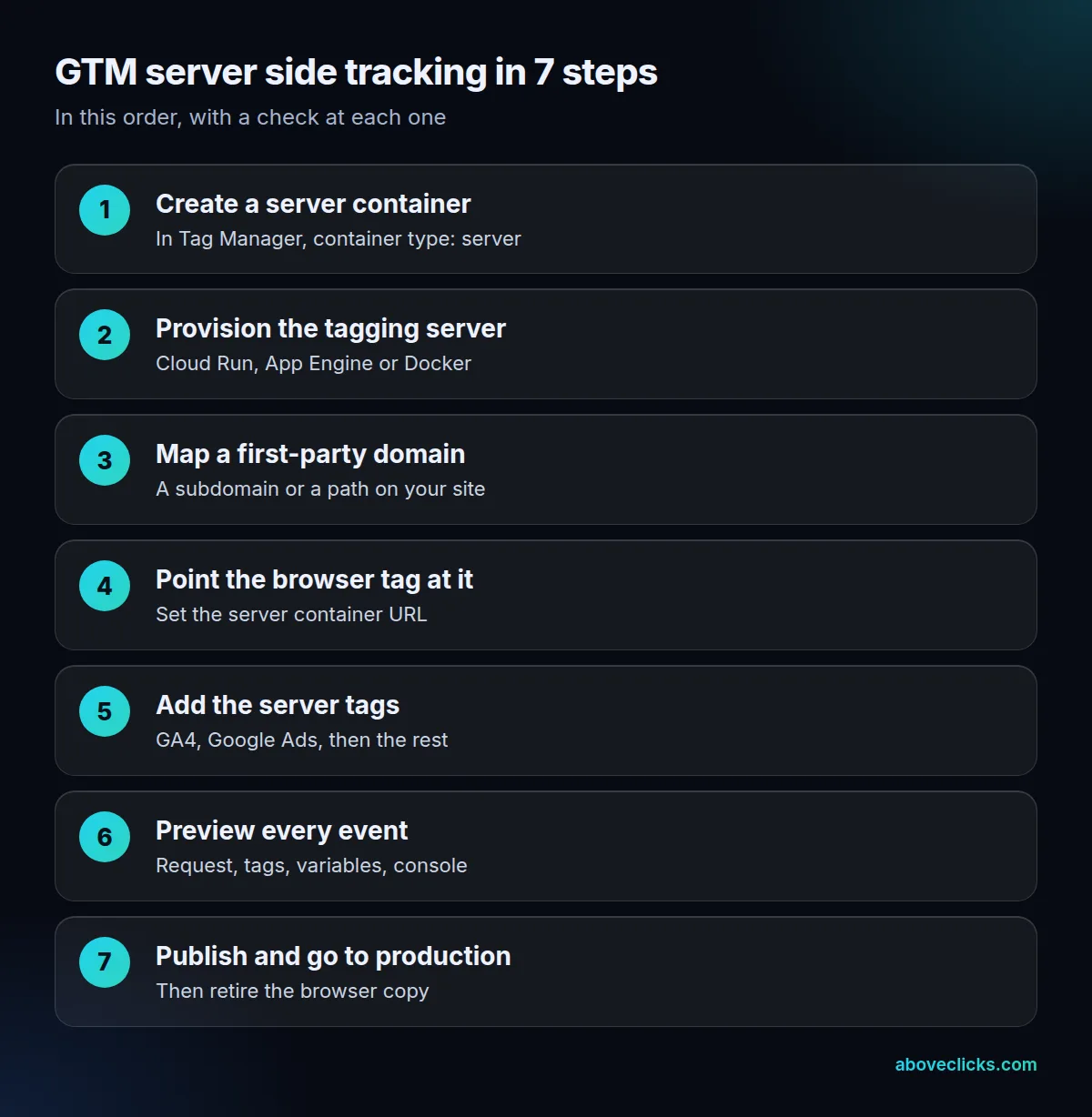
- Create a server container in Tag Manager and choose the server type. Nothing changes on your site yet.
- Provision the tagging server. Google offers Cloud Run, App Engine and a manual route that runs the tagging server as a Docker image. Cloud Run can be provisioned automatically in Tag Manager in a few clicks, and needs a Google Cloud account with a billing account.
- Map a first-party domain. Google’s custom domain guide lists three options: the default provider domain, a subdomain such as metrics.example.com, or a path on your own site such as example.com/metrics. The default domain runs in a third-party context and can only set JavaScript cookies.
- Point the browser tag at the server. Set the server container URL on your Google tag so the page sends its events there. If your site uses a content security policy, Google’s list says to allow the server URL in img-src and connect-src, and in frame-src for the service worker route.
- Add the server tags. Start with the GA4 tag, then the Google Ads tags.
- Preview every event before you publish. The checks are in a section below.
- Publish, then move to production mode. Google strongly recommends running on your first-party domain and in production mode before any production traffic.
If you go the manual route, Google’s manual setup guide adds two rules: deploy exactly 1 preview server and never autoscale it past 1 instance, and make sure your load balancer or CDN timeout is longer than 20 seconds, or preview mode will not work.
Which tags should move to the server first?
The tag that drives your ad bidding, then the reporting tags. Move one tag at a time in your GTM server side tracking build, and keep its browser copy on until the server copy matches your orders.
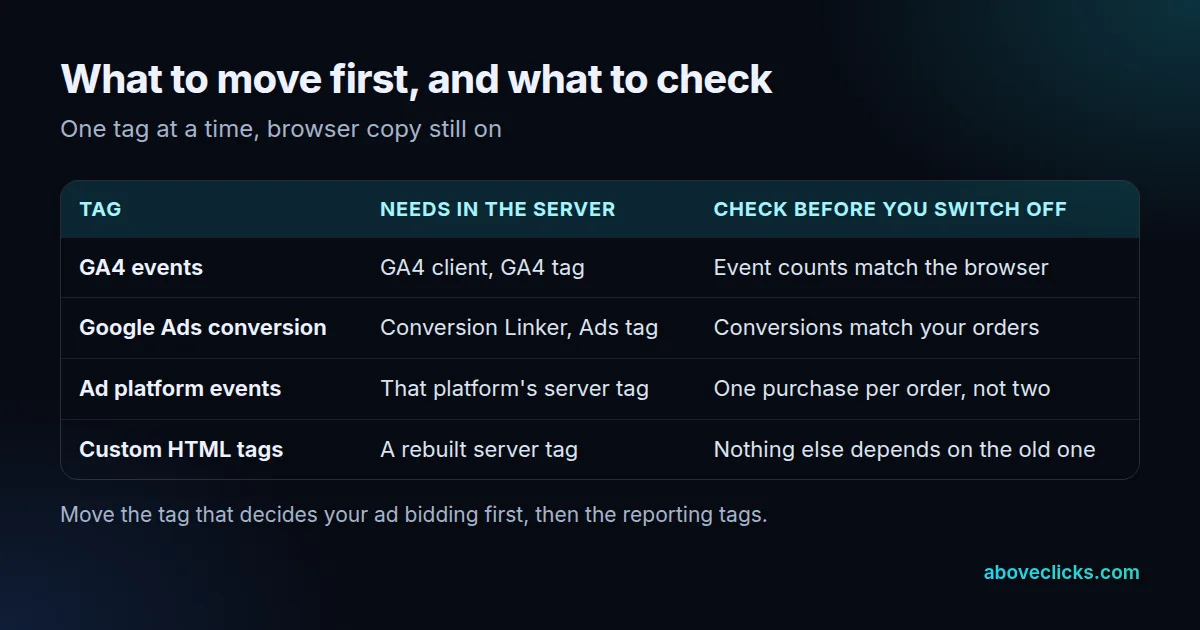
The reason for the order is damage. In a hypothetical store with 500 orders, a purchase tag that fires twice reports 1,000 conversions, a 100% overcount. A wrong reporting number can be corrected later, but a conversion tag that fires twice teaches your bidding the wrong thing every day it runs. That is why the Google Ads conversion comes ahead of the nice-to-have events.
Google’s consent guide shows the minimum a Google Ads conversion needs in the server: the GA4 client to read the incoming request, a Conversion Linker tag and a Google Ads Conversion Tracking tag.
Custom HTML tags cannot simply be copied over. Only tags you rebuild in the server container move; the rest keep running in the browser. For ad platforms such as Meta, the server leg is that platform’s own interface; our Meta Conversions API guide for Shopify covers the deduplication checks. If you are choosing a host rather than building on Google Cloud, Stape vs Elevar compares two common options.
How do you test GTM server side tracking?
To test GTM server side tracking, open the server container’s preview mode, load your site in another window and walk each event through six checks. Do this for every tag you move, before you publish.
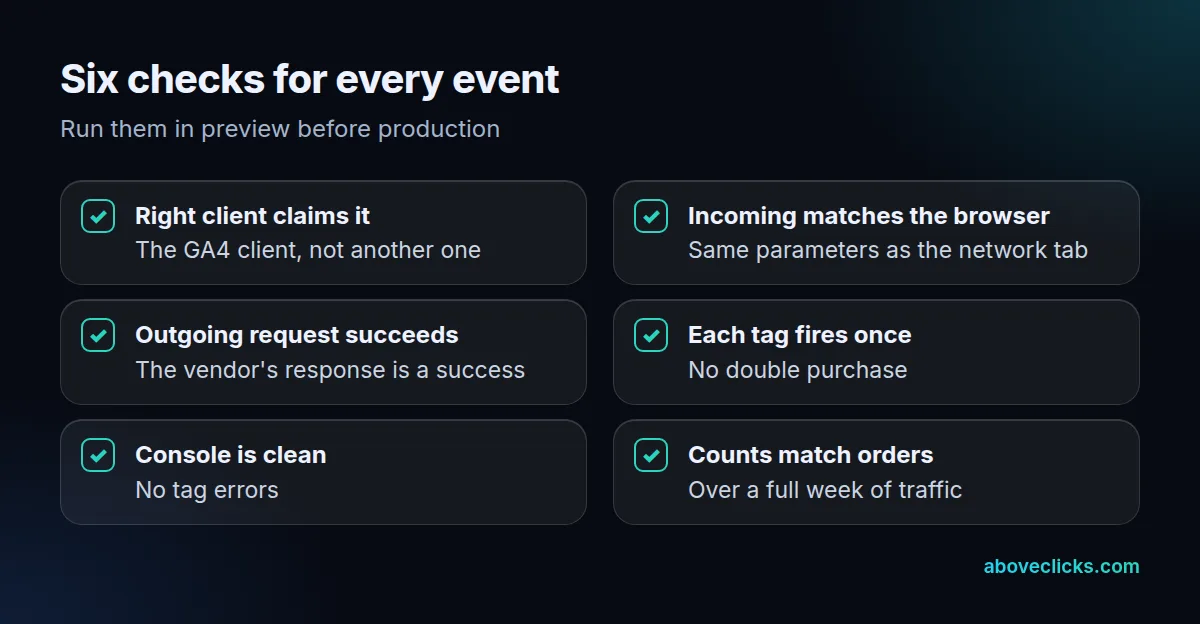
Google’s preview and debug guide describes the screen. The left panel lists incoming requests, and the right panel has tabs for the request, tags, variables, event data and the console.
- The right client claims the request. Only one client can claim a request. Open the Client box and confirm it is the one you configured.
- The incoming request matches the browser. Google says the incoming request should be a 1:1 representation of what you see in Chrome’s network tab. If a parameter is missing there, the problem is in the page, not the server.
- The outgoing request succeeds. The outgoing box shows the tag that made the request and the response from the vendor.
- Each tag fires once. In the Tags tab, a purchase tag should show one firing per order.
- The console is empty. It lists errors from fired tags, such as an invalid endpoint.
The sixth check happens after preview. Compare event counts with your orders over 7 days of normal traffic, and only then retire the browser copy. Testing GTM server side tracking this way takes a day or two of work, not weeks.
Is GTM server side tracking worth it?
GTM server side tracking is worth it when your browser tracking misses enough orders to distort ad bidding, and the monthly server cost per recorded order is small next to that gap. Measure the gap first, because a store with a small gap gains little.
Here is the test, with an invented store. Treat the numbers as a worked example, not a benchmark. Over 30 days a hypothetical store records 500 orders in its own back office. GA4 reports 410 of them and Google Ads reports 365.
- GA4 gap: 90 orders, or 18%.
- Google Ads gap: 135 orders, or 27%.
- Server cost: Google’s Cloud Run guide puts each server at about $45 a month as of November 2026 and recommends at least 2 servers, so the minimum is about $90 a month.
- Cost per recorded order: $90 divided by 500 is $0.18.
If the same store had a 3% gap, the case for GTM server side tracking would be weak. The gap may also not be caused by the browser at all, because declined consent produces missing orders that no server can restore. Check how many visitors decline before you blame ad blockers.
Expect GTM server side tracking to cost more than hosting. The owner of the server environment may have access to your data, according to Google’s manual setup notes, and someone has to watch the servers and update the image. Cloud Run also scales: Google expects 2 to 10 servers to handle 35 to 350 requests per second, so set a billing alert.
If you would rather have the gap measured for you before building GTM server side tracking, our server side tracking service starts with that comparison, and the free audit looks at your tracking with read-only access. The wider tracking and analytics service shows where it fits with GA4 and pixel checks.
Does Google Tag Manager server side tracking get around consent?
No. Google Tag Manager server side tracking changes where tags run, not whether visitors agreed to them. Consent mode still has to be set up, and Google’s guide says you only need to set it up in the 1 web container, not again in the server.
The flow in Google’s consent mode guide is short. Your banner sends the visitor’s choice to the Google tag, the tag adds the consent state to the request it sends to the server, and the Google tags in the server are consent-aware and adjust what they send.
GTM server side tracking also leaves some gaps open:
- Double counting if the browser tag and the server tag both stay on. Check the count of each event, and keep one source.
- A third-party default domain. Without a first-party domain you give up the cookie benefits that were part of the reason to build it.
- Tags you did not rebuild. A custom HTML tag left in the browser keeps firing there as before.
- Missing orders from consent choices. Declined tracking stays declined: if 20% of a store’s visitors decline analytics cookies, no tagging server restores those orders.
If any of this needs a legal answer for your markets, ask a privacy lawyer. If you want a second pair of eyes, see our wider measurement guides. A tracking build can only follow the consent rules you choose; it cannot decide them.