A Meta Conversions API Shopify setup takes 5 steps and no code: install the free Facebook & Instagram app, connect your Meta Pixel and choose the Enhanced or Maximum data-sharing level. Most stores skip the check that purchases arrive from the server, once each, matched to real people.
This guide covers the 5 setup steps, the 6 checks in Events Manager, a worked example of reading the numbers, and when a paid app or the Conversions API Gateway is worth it.
What does the Conversions API do on Shopify?
A Conversions API Shopify connection sends your store’s events, such as add to cart and purchase, to Meta from a server, so they arrive even when the browser doesn’t cooperate. The Meta Pixel records the same events in the shopper’s browser, where ad blockers, browser settings and connection problems can stop it.
Shopify’s Facebook & Instagram app gives you three customer data-sharing levels (Shopify Help Center):
- Standard: the Meta Pixel only. Browser ad blockers can stop it.
- Enhanced: the pixel plus the Conversions API. The purchase event goes from Shopify’s servers to Meta’s, where browser ad blockers can’t block it. Customer details such as name, location, email and phone are shared for matching.
- Maximum: the pixel and the Conversions API, plus Meta’s latest advertising technology, with the same customer details.
So a Meta Conversions API Shopify setup is a setting inside the app, not a separate integration. Meta recommends keeping the pixel running too and sending the same events through both. It calls this a “redundant setup”, and it’s what the Enhanced and Maximum levels give you.
How do you set up Meta Conversions API Shopify tracking?
For a Conversions API Shopify setup, install Meta’s free Facebook & Instagram app, connect your pixel, choose Enhanced or Maximum data sharing, update your privacy policy and verify in Events Manager: 5 steps, no code.
Before you start
Meta’s developer documentation lists a few prerequisites for any Conversions API setup. You need a Meta Pixel, and you use the same pixel ID for browser and server events. You also need a Meta business portfolio that owns the pixel and the ad account. On the Shopify side, you need permission to install sales channels and change their settings.
If an agency or freelancer set up your pixel, check that your own business portfolio owns it before you start. A Conversions API Shopify connection tied to someone else’s portfolio is hard to fix later.
The 5 steps
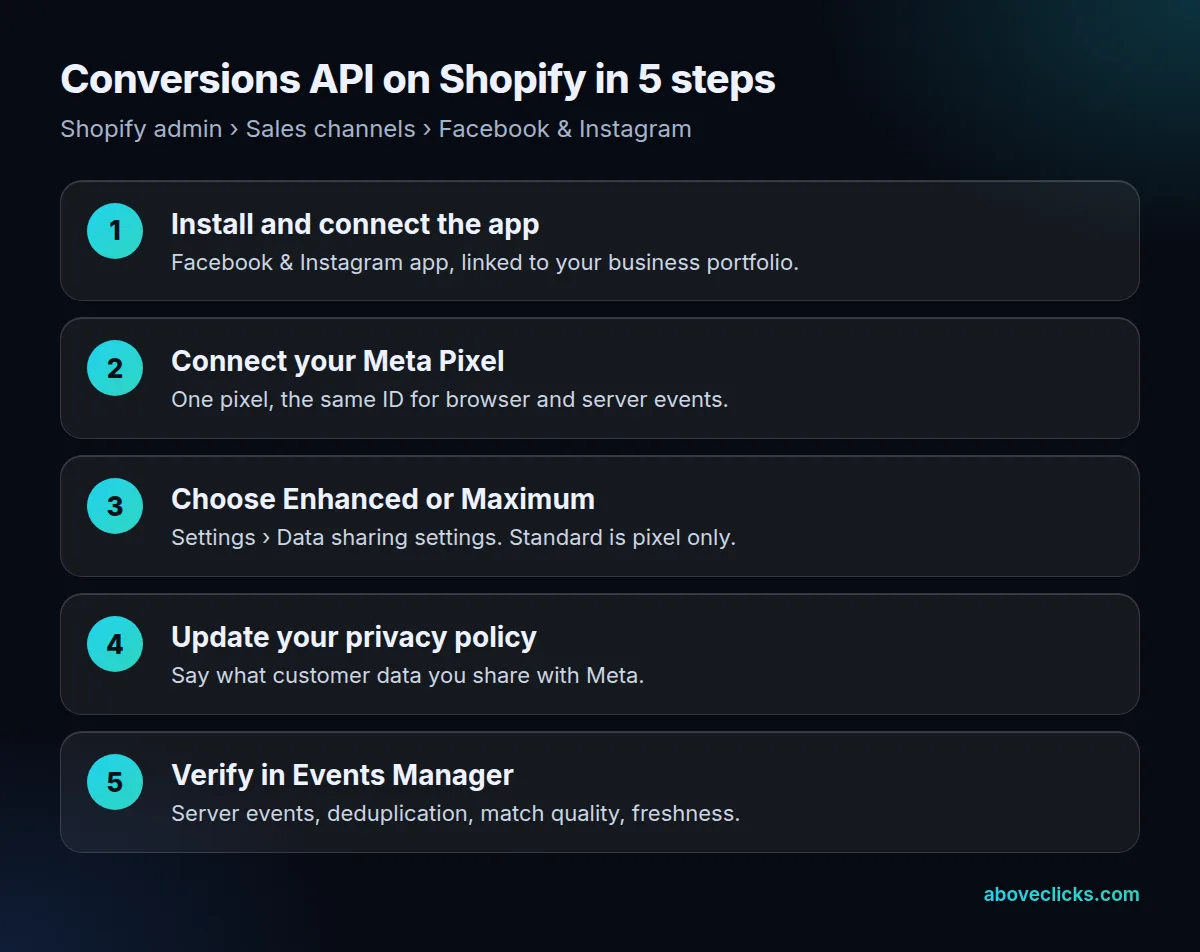
- Install and connect the app. In the Shopify App Store, add the Facebook & Instagram sales channel and connect it to your Meta business portfolio, Facebook Page and ad account.
- Connect your Meta Pixel. Use one pixel. If you already had one, connect that pixel instead of creating a new one, so your history and audiences carry over.
- Choose the data-sharing level. In your Shopify admin, go to Sales channels › Facebook & Instagram › Settings › Data sharing settings. Turn on customer data sharing and choose Enhanced or Maximum. Shopify’s steps also prompt you to connect a pixel here if you haven’t.
- Update your privacy policy. Shopify reminds merchants that data sharing is a choice and that customers should be told how their data is shared. Say that you share customer data with Meta for advertising and measurement. This isn’t legal advice; check what applies in the countries you sell to.
- Verify in Events Manager. Run the checks in the next section, starting the same day.
That’s the whole Conversions API Shopify setup for most stores. The app tracks the standard store events: PageView, ViewContent, Search, AddToCart, InitiateCheckout, AddPaymentInfo and Purchase.
How do you check if the Conversions API is working?
In Events Manager, check that your Conversions API Shopify purchases arrive from browser and server, deduplicate, score 6.0 or higher for match quality, arrive fresh, track Shopify’s orders and come from one pixel. Switching on a Meta Conversions API Shopify setup doesn’t prove anything on its own. These are the checks Meta’s developer documentation describes, plus one comparison with Shopify.
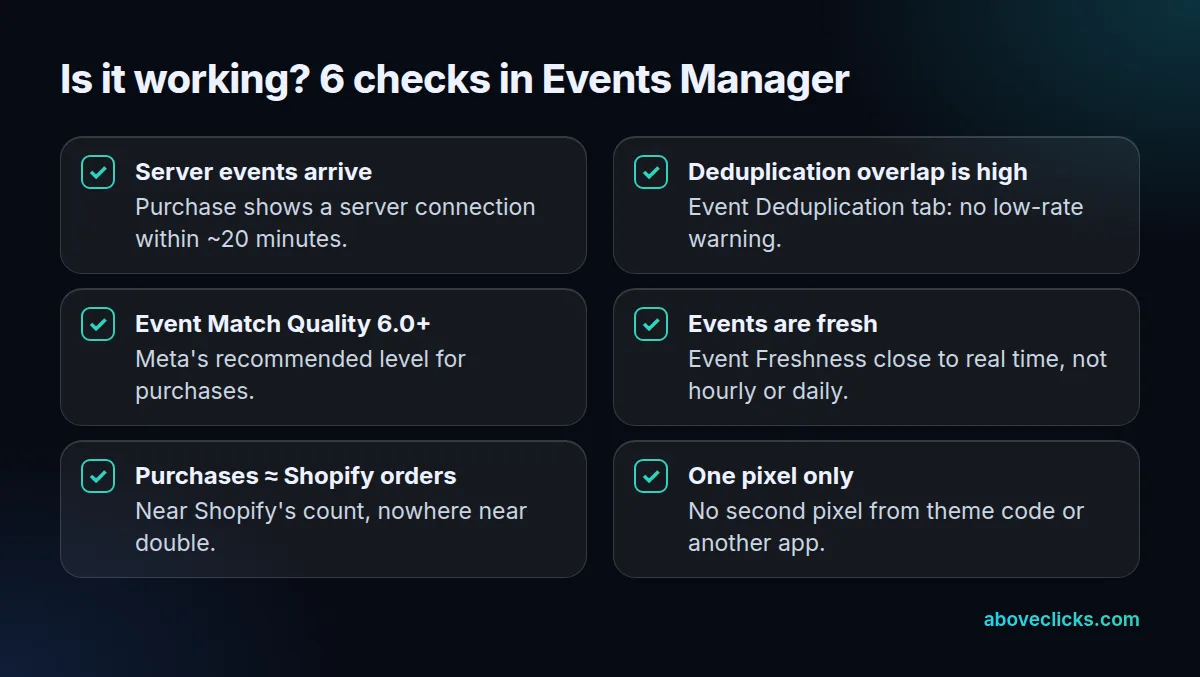
- Server events arrive. Meta says events should be visible in Events Manager within 20 minutes of being sent (Meta for Developers). Open your pixel, then Overview, and look at the connection method for Purchase. You want to see both browser and server.
- Deduplication works. Open the Purchase event, then Event Deduplication. Meta shows the rate of events deduplicated and the “overlap”: the share of events with a dedupe key received from both sources. Low overlap means one source sends keys the other doesn’t. Meta shows a warning when the deduplication rate is too low.
- Event Match Quality is 6.0 or higher. Meta scores Event Match Quality from 1 to 10 and recommends aiming for 6.0 or higher where possible. Only matched events can be used for attribution and ad optimization, according to Meta’s Conversions API best practices.
- Events are fresh. The Event Freshness tab shows the average delay, from real time to weekly. Purchases should arrive close to real time.
- Purchases are close to Shopify’s orders. Compare a week of Purchase events with the orders in Shopify for the same days. More on this in the worked example.
- There’s only one pixel. Look for a second pixel added through theme code, an old checkout script or another app. It’s the most common cause of double counting.
Note that the Overview counts events before deduplication. A Purchase total there that’s roughly double your orders is normal when both sources work. The numbers to judge are the deduplication rate and overlap.
How Conversions API Shopify deduplication works
Meta matches a browser event and a server event when they share the same event ID and event name (Meta for Developers). If both arrive within 48 hours, Meta discards the later copy. When the two don’t differ meaningfully, Meta generally keeps the first one it received.
If the deduplication tab looks healthy with only Shopify’s app installed, leave it alone. Problems usually start when something else also sends purchases without a shared event ID.
Worked example: reading your Conversions API Shopify numbers
Here is a hypothetical store, used only to show the method. In one week, Shopify records 400 orders. In Events Manager, the Purchase event shows:
| Source | Purchase events | Share of Shopify orders |
|---|---|---|
| Browser (pixel) | 340 | 85% |
| Server (Conversions API) | 396 | 99% |
| Received before deduplication | 736 | 184% |
What this tells the store:
- The server fills the gap. The pixel alone missed 60 of 400 orders, or 15%. The Conversions API caught 396. Without it, Meta would have optimized on 340 purchases instead of about 400.
- Deduplication is healthy. 336 events carried the same key from both sources. As a share of the smaller source (340), that’s an overlap of 98.8%. Meta counts each of those once.
- The result is about 400 unique purchases, in line with Shopify. Meta-reported purchases in Ads Manager will still differ from Shopify’s channel reports, because Meta credits purchases by its own attribution settings, but the event data underneath is sound.
Now the broken version. Say a theme snippet adds a second pixel that also fires Purchase, without the shared event ID. Browser purchases jump to 680, overlap collapses, and the 340 extra events can’t be deduplicated. Meta now counts about 740 purchases for 400 orders, and every ROAS figure in the account is inflated by about 85%. Fix that before you judge any campaign.
Native app, Conversions API Gateway or a paid app?
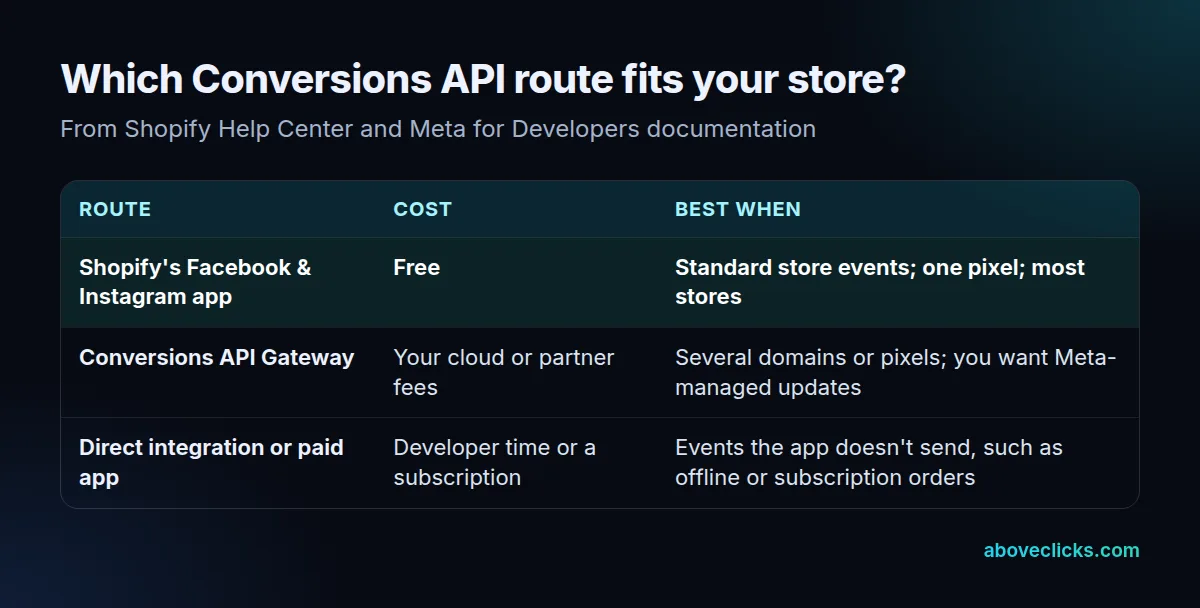
For most stores, the free app is all the Conversions API Shopify integration they need. The other routes solve specific problems. The store in the worked example, with 400 orders a week on 1 storefront and 1 pixel, is a free-app case.
Shopify’s Facebook & Instagram app sends the standard store events through the Conversions API at no cost. It’s the default Facebook Conversions API Shopify route for a single store with one pixel.
The Conversions API Gateway is Meta’s self-serve option in Events Manager. Meta’s documentation says you provision a server in your own account with a third-party cloud provider such as AWS. The only cost is the cloud or partner fees. The Gateway generates the event ID for deduplication automatically, supports several domains and pixels, and updates itself with your consent. A Conversions API Gateway Shopify setup makes sense for a brand running several storefronts or pixels. For a single store, it duplicates what the app already does. In our client work, we only suggest the Gateway when a business runs several storefronts or pixels.
A direct integration or a paid app makes sense when you need events the app doesn’t send. Examples include subscription renewals, orders taken offline, or custom events. Before you pay, write down the specific gap it fills. If you can’t name one, the free route is enough. Any route you choose must follow Meta’s rules for customer data: contact details such as email and phone are sent hashed, and phone numbers need a country code to match.
Common Conversions API Shopify problems and fixes
- Meta shows far more purchases than Shopify. Look for a second pixel or another app sending Purchase. Remove it, or make sure it shares the event ID.
- No server events from your Conversions API Shopify connection. Check that the data-sharing level is Enhanced or Maximum, not Standard, and that the right pixel is connected.
- Low Event Match Quality. Guest checkouts with no phone number lower it. Collecting email and phone at checkout gives Meta more to match on. Both must be normalized and hashed with SHA-256, and phone numbers need a country code (customer information parameters). We reproduced the two worked examples on that page:
[email protected]and16505551212hash to values starting62a14e44ande323ec62, exactly the outputs Meta lists. If the hashes in your Meta Conversions API Shopify setup differ for the same inputs, it isn’t normalizing first. - Purchase values look high. Shopify’s events use the order’s total price, which includes duties and taxes. Account for that when you compare Meta’s ROAS with your margins.
- Test events don’t show up. Meta’s Test Events tool works best with your own real details. Meta notes that test events may be discarded if they don’t match an account.
What to do next
Once your Facebook Conversions API Shopify connection passes the six checks, the data underneath your campaigns is sound. That’s the point to set targets and choose a campaign setup. Our guide to Meta ads for ecommerce covers that order of work. The Advantage+ sales campaigns guide is the next step for most stores.
If you’d rather have someone check it, our Meta ads service starts every account with a tracking audit, deduplication and match quality included.