GA4 attribution is the way Google Analytics 4 assigns credit for a key event, such as a purchase, to the ads and channels on the customer’s path. You choose the model, the channels that can receive credit and the lookback window, and those choices change every report.
This guide covers the three models that remain, shows one path read three ways, walks through the settings and their reach, and ends with a checklist for when GA4 and Google Ads disagree.
What is GA4 attribution?
It is the rule set that decides which touchpoint earns a key event. Google defines attribution as assigning credit for important user actions to different ads, clicks and factors along the path to the action. A touchpoint is each of those interactions.
Typically, all credit goes to the last ad a customer clicked. Customers often search several times and click several ads before buying, so a last-click view can over-credit the final step and under-credit the first. Any event can become a key event, so the same logic applies to purchases, leads and sign-ups alike.
One rule applies to every model: direct visits receive no credit unless the whole path consists of direct visits. Conversions can also be reattributed for up to 7 days after they happen, so yesterday’s numbers can still move.
Which attribution models are available?
Three: data-driven, paid and organic last click, and Google paid channels last click. Google lists these as the models available in the Attribution reports of a Google Analytics property.
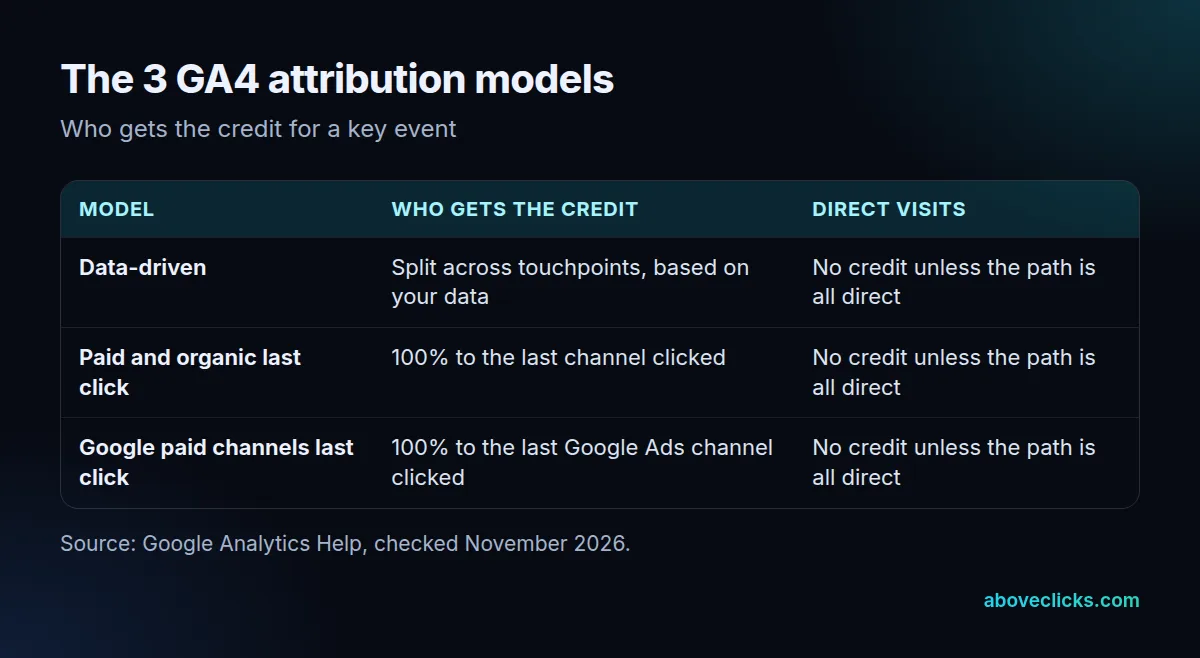
Data-driven attribution uses machine learning on both converting and non-converting paths, so its split is specific to each advertiser and each key event. Our glossary entry on data-driven attribution has the short definition, and the attribution model entry covers the general idea.
Paid and organic last click gives 100% of the key event value to the last channel the customer clicked. Google paid channels last click gives 100% to the last Google Ads channel clicked, and falls back to paid and organic last click when the path has no Google Ads click.
The first click, linear, time decay and position-based models are gone. According to Google’s settings page, those 4 models stopped being available in November 2023, so any GA4 attribution model guide that tells you to pick one of them is out of date.
How does the model you pick change your numbers?
The GA4 attribution model you pick moves credit between channels without changing the total. The same orders are simply given to different rows.
Example with invented numbers: a store has 50 orders at an $80 average order value, $4,000 in total. Every buyer first clicked a Google Ads search ad and later clicked an email. Here is how the 3 models read that path.
- Paid and organic last click: email gets 50 orders and $4,000; Google Ads gets 0.
- Google paid channels last click: Google Ads gets 50 orders and $4,000; email gets 0.
- Data-driven: the split comes from your data. If it were 0.6 to Google Ads and 0.4 to email per order, Ads would show 30 orders and $2,400, and email 20 orders and $1,600.
All 3 readings add up to the same 50 orders and $4,000. Neither is “right”; they answer different questions. Pick the GA4 attribution model that matches the decision: last click for what closes sales, data-driven for how channels work together.
How do you change GA4 attribution settings?
For GA4 attribution settings, go to Admin, under Data display, open Events and click Attribution settings. You need the Marketer role or higher on the property, and there are 3 settings to review before you click Save.
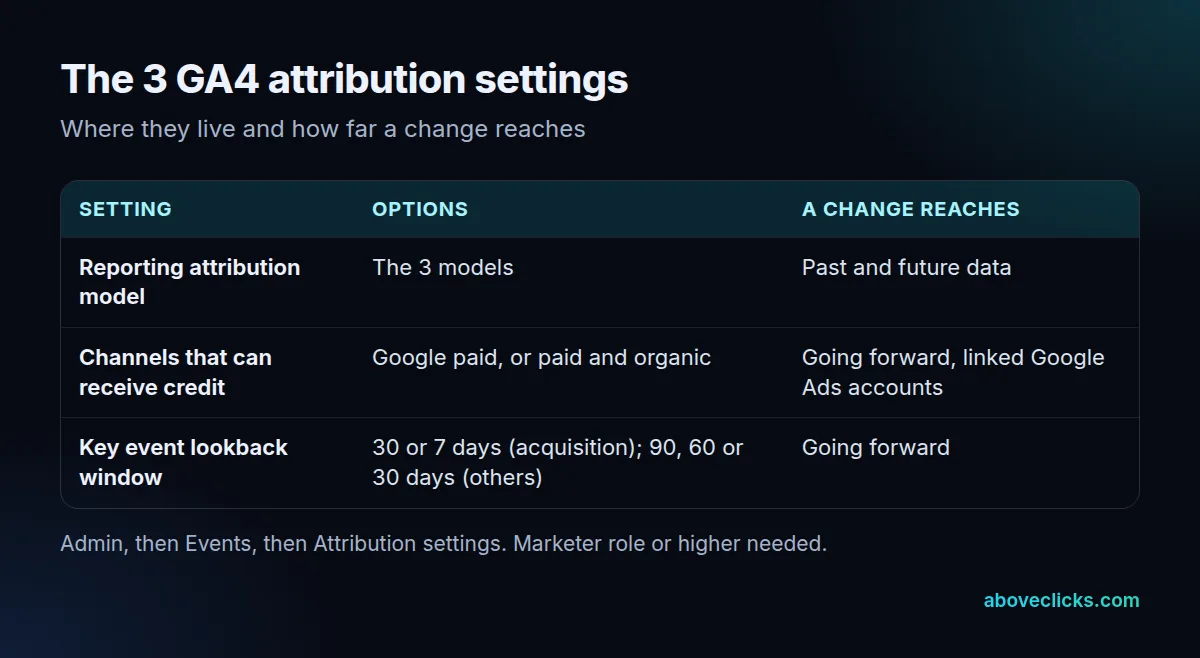
The reach of each change matters more than the setting itself. Google says changing the reporting attribution model applies to historical and future data, so old reports will shift the moment you save. The lookback window changes apply going forward.
Of the GA4 attribution settings, the channels setting decides whether Google paid channels only, or paid and organic channels, can receive credit. A change applies to all linked Google Ads accounts and can take a few days to appear in Google Ads. Paid and organic channels applies to web conversions only; app conversions always use Google paid channels.
The default lookback for most key events is 90 days, so a model change reaches back further than you may expect. Because a model change rewrites history, write down the date you change any of the GA4 attribution settings. A step in a chart three months later is easier to explain with a note.
What is the GA4 attribution window?
Google calls it the key event lookback window, and it sets how far back a touchpoint can earn credit. A 30-day window means a key event on January 30 can only credit touchpoints from January 1 to 30.
The GA4 attribution window defaults to 30 days for acquisition key events (first_open and first_visit), with 7 days as the alternative. For every other key event the default is 90 days, with 30 and 60 days as options. The window applies to all models and all key event types, and it also applies to session attribution.
A longer GA4 attribution window suits products with a long decision time, such as furniture. A shorter one suits impulse purchases, where a click 80 days ago probably did not cause today’s order. Whatever you choose, use the same number of days in Google Ads so the two sets of reports are comparable.
Where is the attribution report?
In Google Analytics, click Advertising on the left. Under Attribution you will find Attribution models and Attribution paths.
In the GA4 attribution report, the reporting attribution model you chose changes key event reports and explorations that use event-scoped dimensions: Source, Medium, Campaign and Default channel group. It does not change user-scoped or session-scoped dimensions such as Session source or First user medium. If a session-scoped report disagrees with an event-scoped one, that is expected, not a bug. Our GA4 channel groups entry explains how the default grouping is built.
Switching the GA4 attribution report to data-driven also introduces decimals. Google calls it fractional credit: if a user follows the path keyword1 then keyword2, each keyword shows a fraction, and together they sum to 1.0 in the Key events column.
The model also depends on clean inputs. Parameter values are case sensitive, so utm_source=google and utm_source=Google show as two sources. Use UTM parameters in one lowercase spelling, and build them with our UTM builder.
Which attribution model should a store choose?
Choose a GA4 attribution model by the decision you are making, not by habit. Google’s own documentation describes data-driven attribution as the model that uses your account’s data to calculate the actual contribution of each click, so it suits stores with enough paths to learn from.
A practical way to decide, with a store that sells to returning shoppers in mind:
- Judging which channel closes sales: use paid and organic last click, and read it with the 90-day default window.
- Judging Google Ads on its own: use Google paid channels last click, so email and organic do not take credit from search.
- Judging how channels support each other: use data-driven, and expect fractional credit in the key events column.
- Presenting numbers to a team: pick one model, write it on the first line of the report and keep it for at least a quarter.
Whichever you choose, switch models only to answer a question. If you change the GA4 attribution setting every month, trend lines stop being comparable, and nobody can say whether a channel improved or the rule did. Our measurement guides cover the setup around it, such as events and consent.
Why does GA4 attribution differ from Google Ads?
Because the two products use different defaults. Google says that for Google Ads reports the default channel setting is Google paid, while for Google Analytics reports it is paid and organic, so the same sale can sit in different rows.
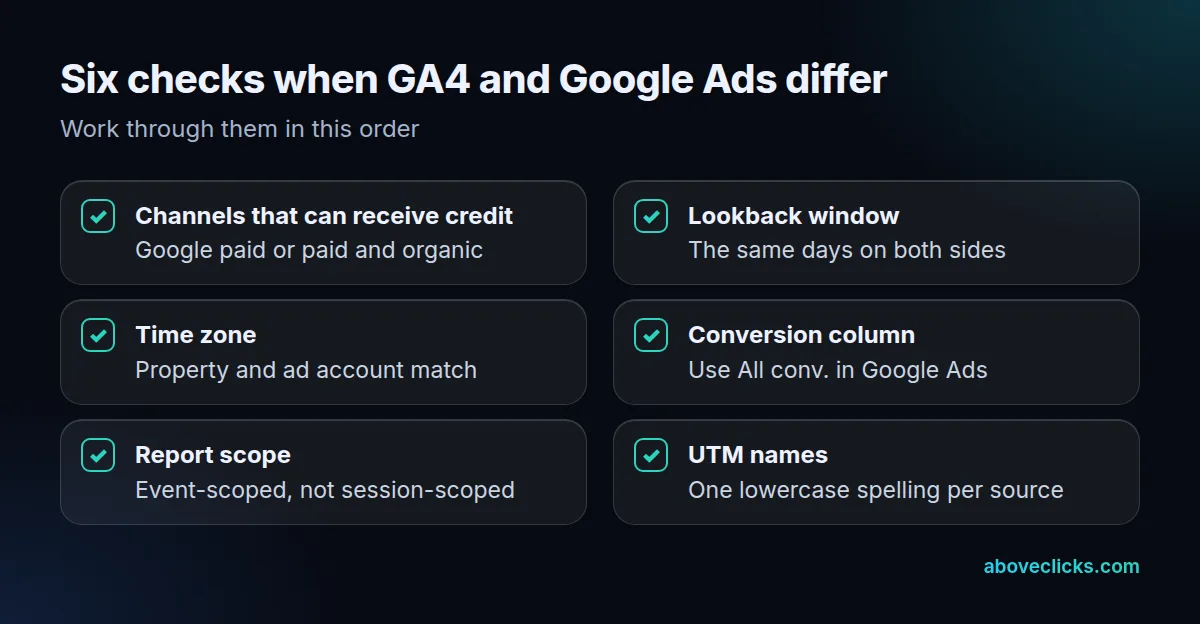
Work through these 6 checks in order. First, compare the channels that can receive credit. Second, compare the lookback window in days. Third, check time zones: Analytics reporting uses the property time zone and Google Ads uses the account time zone, so a mismatch shifts orders across midnight. Fourth, use the All conv. column in Google Ads, since that is the default view to match Analytics. Fifth, make sure you compare event-scoped with event-scoped reports. Sixth, scan your sources for spelling variants.
The window check is the one people skip. If Google Ads uses a 60-day window and GA4 uses the 90-day default, a click 75 days before the order earns credit in one product and not in the other. Align both to the same number of days first.
If all 6 pass and the gap is still large, the cause is usually in tracking, such as missing events or a broken tag, not in the settings. Our GA4 audit checks that layer, and the tracking and analytics service fixes what it finds. You can also send us a free audit request first.