A BigCommerce to Shopify migration moves your products, customers, orders and content to a new Shopify store and points every old URL at its new address. Plan it in seven steps, starting with the URL inventory.
This BigCommerce to Shopify migration guide covers what moves and the limits, the seven steps in order, the methods, the rules that protect rankings, a launch checklist and what changes on Plus. Limits are as of November 2026.
What is a BigCommerce to Shopify migration?
A BigCommerce to Shopify migration is the move of a store’s data and URLs from one hosted platform to another, done so customers and search engines can still find every page that mattered. The data move is the easy part; the old addresses are the hard part.
Shopify’s migration guide links to platform-specific guides for 10 platforms, including WooCommerce, Wix and Squarespace, but BigCommerce is not one of them. So a BigCommerce to Shopify migration is planned from the general guide, which starts with a decision rather than an import: review the store and choose what to move.
It lists 6 kinds of data: products, customers, historical orders, gift cards and store credits, blogs, and pages. It also says a migration is a good time to purge old, low-performing content. That advice saves redirect work later, because every page you drop is one fewer URL to map.
This guide assumes you have already decided to move. It covers the process, not the platform comparison.
What data moves from BigCommerce to Shopify, and what are the limits?
Products, customers, historical orders, gift cards, blogs and pages can all move, but each has its own method and limit. The table adds a sixth row that people forget: your old redirects.
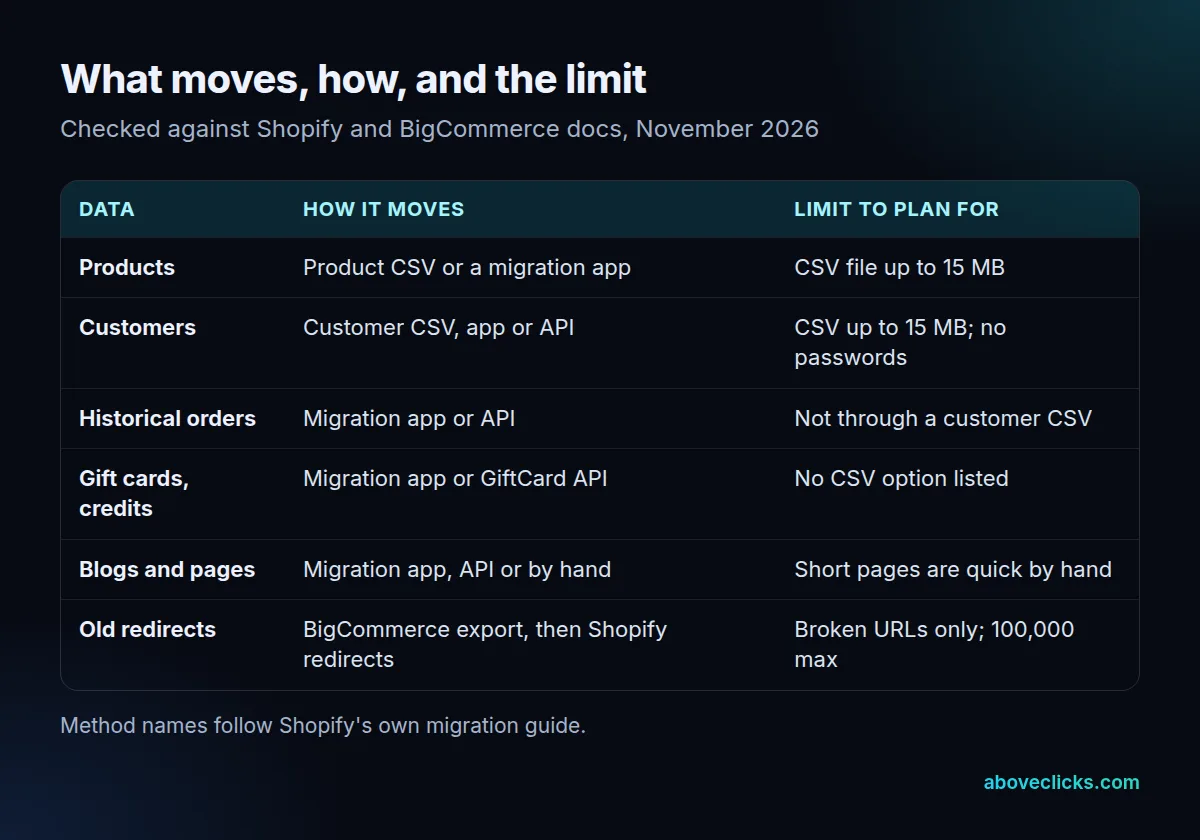
Four rules from Shopify’s help pages decide how the import goes:
- Order matters. Shopify’s guide says to import products first, then customers, then historical orders, so that orders connect to the right products and customers.
- Files have a size cap. The product import rejects a CSV file over 15 MB, so a large catalog has to be split into several files. The customer import has the same 15 MB limit.
- Passwords stay behind. They’re encrypted outside Shopify, so customers must be invited to create new ones.
- Orders need another route. A customer CSV file carries no order information, so old orders go in through a migration app or the Order and Transaction APIs.
Two smaller traps follow from that. Shopify warns that a CSV file sorted in a spreadsheet editor can break the links between products and their images, so avoid sorting the export. And each imported order sends a new-order email to every staff member set to receive them, so turn those notifications off before the order import and back on afterwards.
Decide early whether old orders must live inside Shopify or can stay in an archive that finance can still open. That choice can change the method of your BigCommerce to Shopify migration, and with it the timeline.
How do you do a BigCommerce to Shopify migration step by step?
In seven steps: inventory, URL map, build, import, redirects, launch and monitor. Putting the inventory first is what stops rework in a BigCommerce to Shopify migration, because the new store’s structure should follow what already ranks.
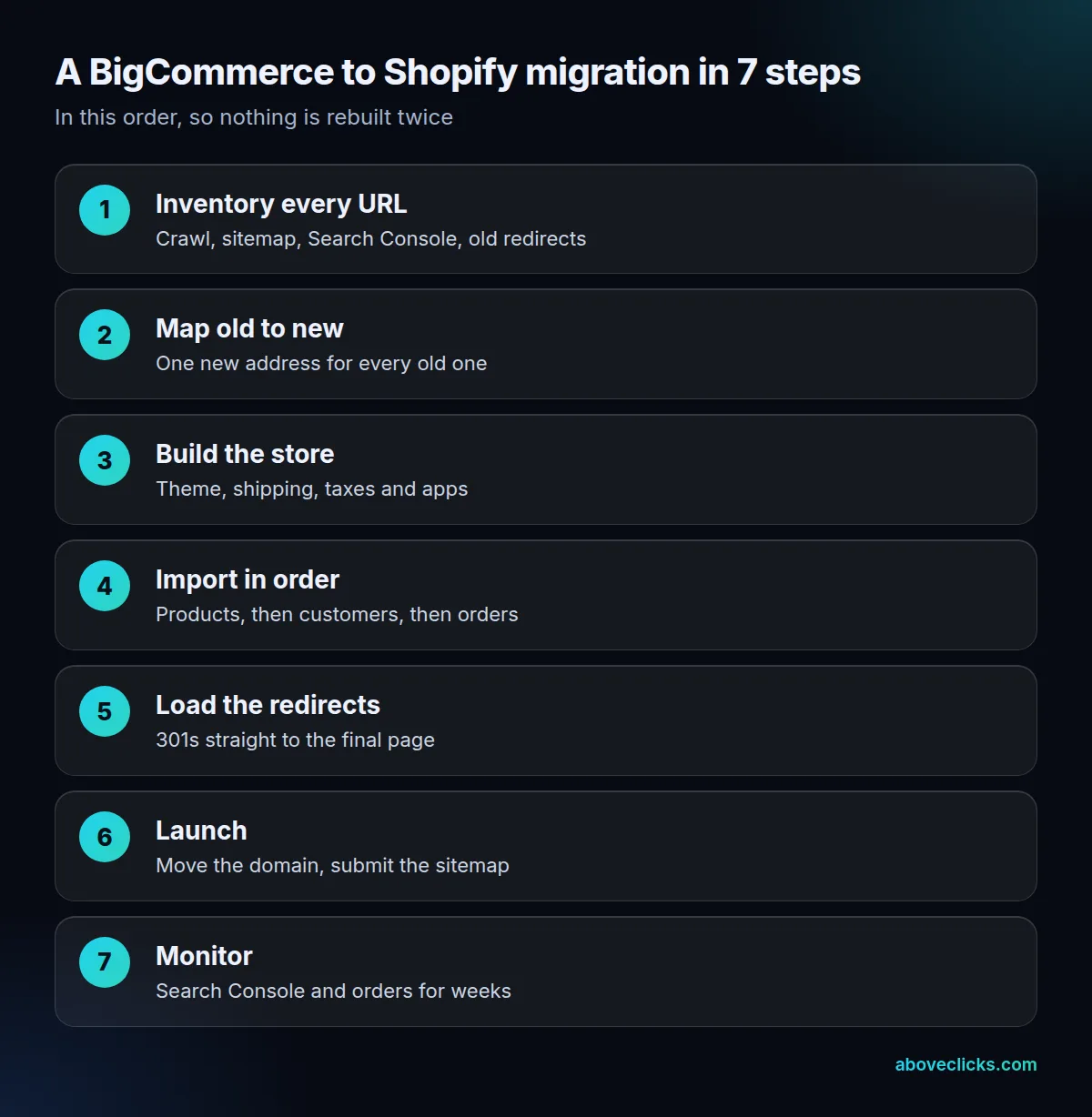
- Inventory every URL. Combine a crawl of the live store, its sitemap, the pages that earn clicks in Search Console and the list of redirects already set up in BigCommerce.
- Map old to new. Pair each old URL with one new address, or decide on purpose that it has no equivalent.
- Build the store. Pick the theme, set up shipping zones, taxes and staff accounts, and install only the apps you need.
- Import in order. Load products, then customers, then orders, and check price, weight and inventory, which Shopify says can hurt the business if they’re imported wrongly.
- Load the redirects. Add the redirects from the URL map.
- Launch. Disconnect the domain from BigCommerce, connect it to Shopify and submit the sitemap.
- Monitor. Watch Search Console and orders for several weeks.
Every BigCommerce to Shopify migration we plan follows the same order. On our Shopify migration page we describe reviewing the catalog, URLs and content and sending a migration plan within 2 workdays, with redirects planned before launch and tracking rebuilt before the switch.
Five costly traps show up in a typical BigCommerce to Shopify migration:
- Forgetting the old redirects. Links from other sites may point at paths that BigCommerce already redirected. Those paths 404 on Shopify unless you recreate them.
- Importing products as hidden. Shopify notes that hidden imported products aren’t published until you make them available to your sales channels.
- Assuming passwords and orders come across. Neither moves with a CSV file.
- Flooding staff with order emails. One email per imported order, unless the notifications are off.
- Leaving staging rules on. A noindex rule or an old canonical sends the wrong signal on launch day.
How do you keep your SEO in a BigCommerce to Shopify migration?
By mapping every old URL in your BigCommerce to Shopify migration, including the old redirect sources, to a final Shopify page and loading permanent redirects before the domain goes live. Shopify’s product and collection paths are fixed, so almost every URL changes.
Google’s site move guidance is specific. It recommends server-side permanent redirects such as 301s, says to redirect straight to the final page and, if a chain can’t be avoided, to keep it ideally to 3 hops or fewer. It also says to keep redirects for as long as possible, generally at least 1 year. A small to medium site can take a few weeks for most pages to move.
Shopify’s URL redirect rules add the platform limits, as of November 2026:
- You can redirect only from broken URLs, meaning pages that show a 404 error.
- The fixed paths
/products,/collectionsand/collections/allcan’t be redirected. - A store can hold up to 100,000 redirects.
- Redirects don’t apply to all market subfolders automatically; each locale needs its own.
Why do old BigCommerce redirects belong in the URL map?
Because a crawl only finds pages that are live. BigCommerce’s Redirects API manages the store’s 301 redirects, and its export job creates an export of them, for one site or for all sites. That list shows every old path BigCommerce currently redirects.
Here’s a worked example for an invented store, not a client. A crawl finds 1,650 URLs: 1,400 products, 90 categories, 40 content pages and 120 blog posts. The redirect export adds 210 old paths, so the real inventory is 1,860 URLs.
Take one of those 210. /old-boots/ redirected to /boots-classic/ on BigCommerce. After the move, both must point straight at the new product page, so each is one hop. If you map only the crawled URL, /old-boots/ becomes a 404 and any link to it is lost.
Before launch, test the top 100 URLs of the BigCommerce to Shopify migration by organic traffic from Search Console, and check the whole list again after the domain switches. If you’d rather not do this alone, our SEO migration service covers the URL map and the redirects, and the Shopify SEO checklist covers the settings to check once you’re live.
Which method should you use to transfer BigCommerce to Shopify?
The one that matches the size and complexity of each data type. To transfer BigCommerce to Shopify, Shopify lists 5 methods, from least to most technical, and you can mix them.
- Copy and paste the content from the old store into the new one.
- Export to CSV files and import them into Shopify; some data can’t move this way.
- Use a migration app from the Shopify App Store.
- Hire a Shopify Partner to manage the migration.
- Build a custom migration with the Shopify API, or hire a Partner to build it.
Shopify’s guide gives a rule of thumb: policy pages can be copied by hand, while a catalog of 250 products likely needs a CSV file or an app. Its guide also points to the Store Migration app in the Shopify App Store. Before you rely on any app, read its listing for the source platform and the data types it carries, because an app that moves products may not move orders or gift cards.
Most stores mix methods: copy 8 policy pages by hand, import products by CSV file and use an app or the API for orders. A migration app handles the transfer, but not the thinking. You still need the URL map, the redirect load and the launch checks that every BigCommerce to Shopify migration depends on.
What goes on the launch checklist?
Import accuracy, redirects, the domain, noindex rules, the sitemap, tracking and customer access. Each item is something a store owner can check in a browser or in Search Console. Retest the top 100 URLs by organic traffic once the domain has switched.
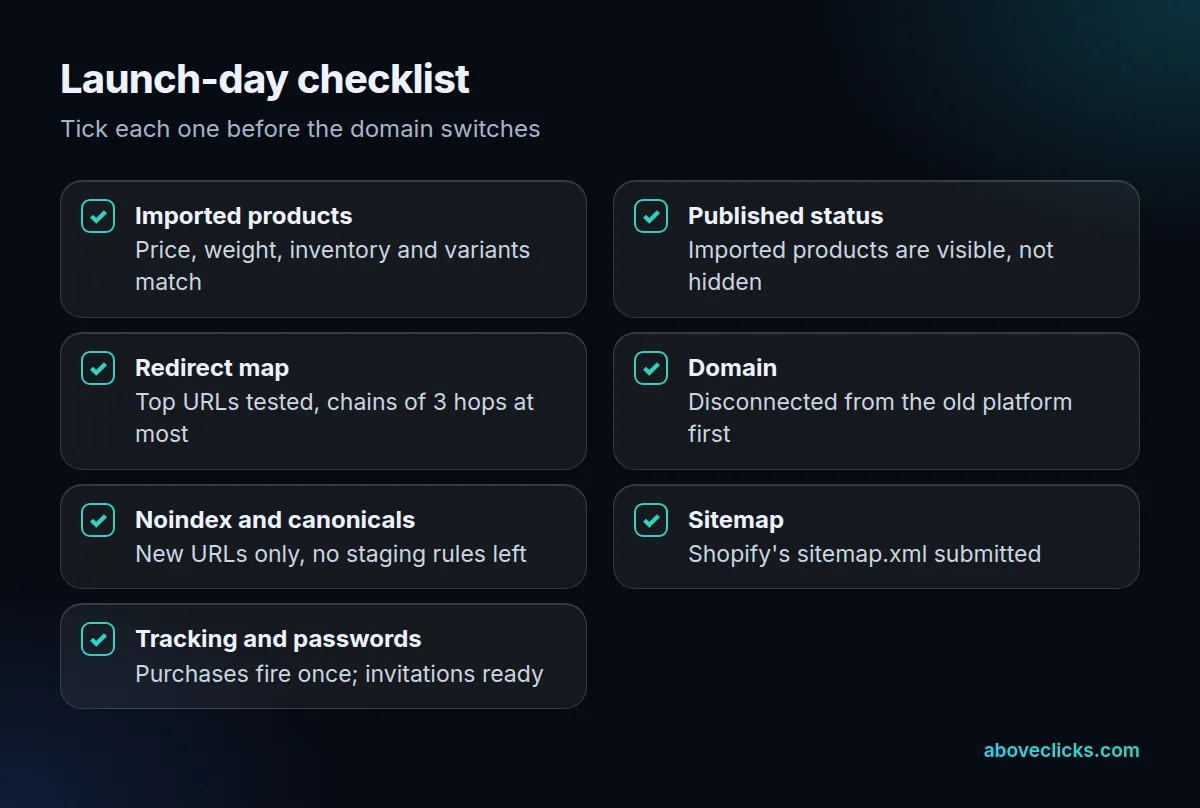
A BigCommerce to Shopify migration fails quietly when one of these is skipped, so three items deserve a second look:
- The domain. Shopify says you may need to disconnect the domain from your previous platform’s settings before moving it; if you don’t, you might see SSL certificate errors.
- Noindex and canonicals. Google’s site move steps list both: remove any noindex rule you added to keep staging out of search, and check that canonicals use the new URLs.
- The sitemap. Shopify generates a sitemap.xml automatically, and after launch it can take Google a few days to a few weeks to index the site, according to Shopify’s migration guide. Submit the sitemap in Search Console on launch day instead of waiting.
For tracking, place at least 1 test order on the new store and compare it with an old one: the same order ID, value and items should reach analytics and your ad platforms, once each. Fixing a double-counted purchase after launch means re-cleaning weeks of reports, so test it before the domain switches.
What changes in a BigCommerce to Shopify Plus migration?
Mostly scale, not method. A BigCommerce to Shopify Plus migration follows the same seven steps as any BigCommerce to Shopify migration. What changes is the headroom, such as the redirect cap, which Shopify sets at 20,000,000 on Plus against 100,000 on the other plans.
Shopify’s guide also sends Plus stores to its Plus plan launch checklist instead of the standard one, so use that list for the final week. Even with the larger cap, redirect only the URLs that earned traffic or links and retire the rest on purpose. A bigger limit doesn’t make a longer redirect list better; Google still advises short chains and an accurate map.
Plan choice depends on checkout, B2B and international needs, which this guide doesn’t cover. For help budgeting the build itself, see our guide to Shopify website development cost. If you want a second pair of eyes on your URL list before launch, our free audit is the place to start. More guides are in e-commerce SEO.