Product schema markup is structured data, written in schema.org’s Product vocabulary, that tells Google exactly what a product page sells: its name, images, price, availability and identifiers. With it, a product page can be eligible for Google’s merchant listing experiences and product snippets, which show details such as price, stock and ratings in search results.
Most themes and apps print some product schema already. The problems are in what they leave out or get wrong, so this guide covers what Google requires, an annotated example, and 12 checks.
What product schema markup does
Google splits Product markup into two kinds (Google Search Central):
- Merchant listings are for pages where customers can buy the product from you. This is the one stores need.
- Product snippets are for pages where people can’t buy directly, such as an editorial review (product snippet documentation).

The two overlap. Google’s introduction to Product structured data says that adding the required properties for merchant listings means your product pages can also be eligible for product snippets. So a store adds merchant listing markup and gets both.
Structured data isn’t required to appear in Google. Google’s guide to sharing product data says it helps Google understand the page and makes it eligible for rich results. It also recommends a Merchant Center feed alongside the markup, because both together give the widest eligibility. Our guide to Google Shopping feed optimization covers the feed.
Required and recommended properties
For merchant listings, Google requires very little of your product schema. It needs:
- name: the product’s name.
- image: one or more image URLs that Google can crawl.
- offers: a single Offer (not an AggregateOffer), because the merchant must be the seller.
Inside the Offer, Google requires a price above zero and a priceCurrency in three-letter ISO 4217 format, such as USD.
Everything else is recommended. The ones most stores can fill truthfully:
- On the Offer: availability (one value, such as InStock or OutOfStock), itemCondition, priceValidUntil, shippingDetails and hasMerchantReturnPolicy.
- On the Product: description, brand.name, gtin (or gtin8, gtin12, gtin13, gtin14), mpn, sku, color, material, size, aggregateRating and review.
Recommended doesn’t mean optional in practice. Shipping, returns and ratings are what make a result stand out, and a GTIN helps Google match your product to the same item elsewhere.
Product schema markup example, property by property
Here’s a product schema markup example for a hypothetical store selling a 10 inch white ceramic planter. The GTIN and prices are made up for the example.
| Property | Example value | Google’s status | Where it comes from |
|---|---|---|---|
@type | Product | Required | Fixed |
name | Ceramic Planter, White, 10 in | Required | Product title |
image | 3 image URLs (1×1, 4×3, 16×9) | Required | Product media |
description | Glazed ceramic planter with drainage hole and saucer | Recommended | Product description |
brand.name | Example Pots | Recommended (at most one) | Vendor |
gtin12 | 012345678905 | Recommended (numeric form) | Barcode field |
sku | CP-10-WHT | Recommended (no spaces) | SKU field |
offers.@type | Offer | Required | Fixed |
offers.price | 48.00 | Required (above 0) | Variant price |
offers.priceCurrency | USD | Required | Store currency |
offers.availability | https://schema.org/InStock | Recommended (one value) | Inventory |
offers.itemCondition | https://schema.org/NewCondition | Recommended | Fixed for new goods |
offers.url | The product’s canonical URL | Useful | Product URL |
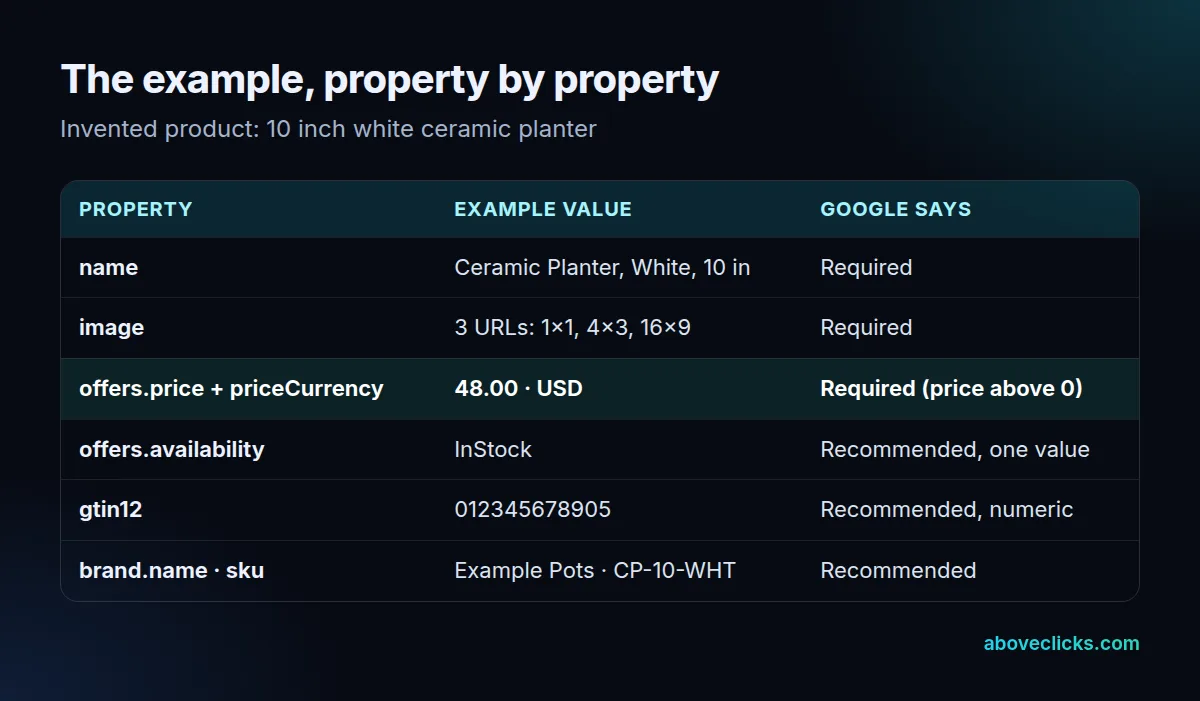
Write it as JSON-LD in one <script type="application/ld+json"> block in the page. Google supports other formats, but it generally recommends JSON-LD. A schema.org Product object with these properties, and an Offer nested under offers, is a complete merchant listing.
Two details in product schema catch people out. Google wants the most specific GTIN type that applies (here gtin12 for a 12-digit UPC), in plain digits, not as a URL. And sku must not contain spaces.
We tested this example ourselves. We wrote the table above out as JSON-LD and ran it through Adobe’s open-source structured-data validator: it parsed as one Product with no errors, only notes about optional fields such as aggregateRating and mpn. Then we fed it two broken copies, one with a price of 0 and a SKU with spaces, and one with the Offer removed entirely. Both passed with the same optional-field notes. A clean result from a generic validator doesn’t mean Google will accept the page, which is why the checklist below is worth running by hand, and why Google’s own Rich Results Test is the final check.
Variants: one ProductGroup, one URL per variant
If the planter comes in white, black and sage, each color is a variant, and your product schema should say so. Google’s product variant documentation groups them with a ProductGroup:
- productGroupID: the parent product’s ID.
- variesBy: the properties that change, such as color or size.
- hasVariant: one Product per variant, each with its own Offer.
Shared details such as brand and reviews can sit once on the ProductGroup. Google says this markup makes the products eligible to show variant information in merchant listings. Each variant should have its own URL, such as a ?variant= or ?color= parameter, and a store selling in two currencies needs a separate URL per currency.
Shipping and returns: put them under Organization
You can add shipping and return details to every Offer, but Google recommends a different route. Put a store-wide return policy and shipping policy under your Organization markup, and use Offer-level properties only for products that differ from the standard policy. One policy in one place is easier to keep accurate than the same details copied into every product. If an Offer in your product schema needs to point at the store-wide return policy, Google lets it reference the policy’s @id instead of repeating the details.
Shopify product schema markup
Shopify’s Help Center says its themes include product markup, and Shopify’s structured_data Liquid filter outputs a schema.org Product for a product with no variants, or a ProductGroup for one with variants (Shopify developer docs). Older or custom themes may hand-code their own markup instead.
Before you add a product schema app, check what your theme already prints:
- Run a product URL through Google’s Rich Results Test.
- Count the Product or ProductGroup items. Two separate Product blocks for one product usually means the theme and an app both print markup. Keep one.
- Look for the gaps: GTIN, brand, shipping and returns are the fields to check first. If a product’s barcode field is empty, no theme or app has a GTIN to print for it.
For the rest of the Shopify setup, see our Shopify SEO checklist.
The 12-point product schema markup QA checklist
Run these checks on one product of each template before you roll markup out across the store.
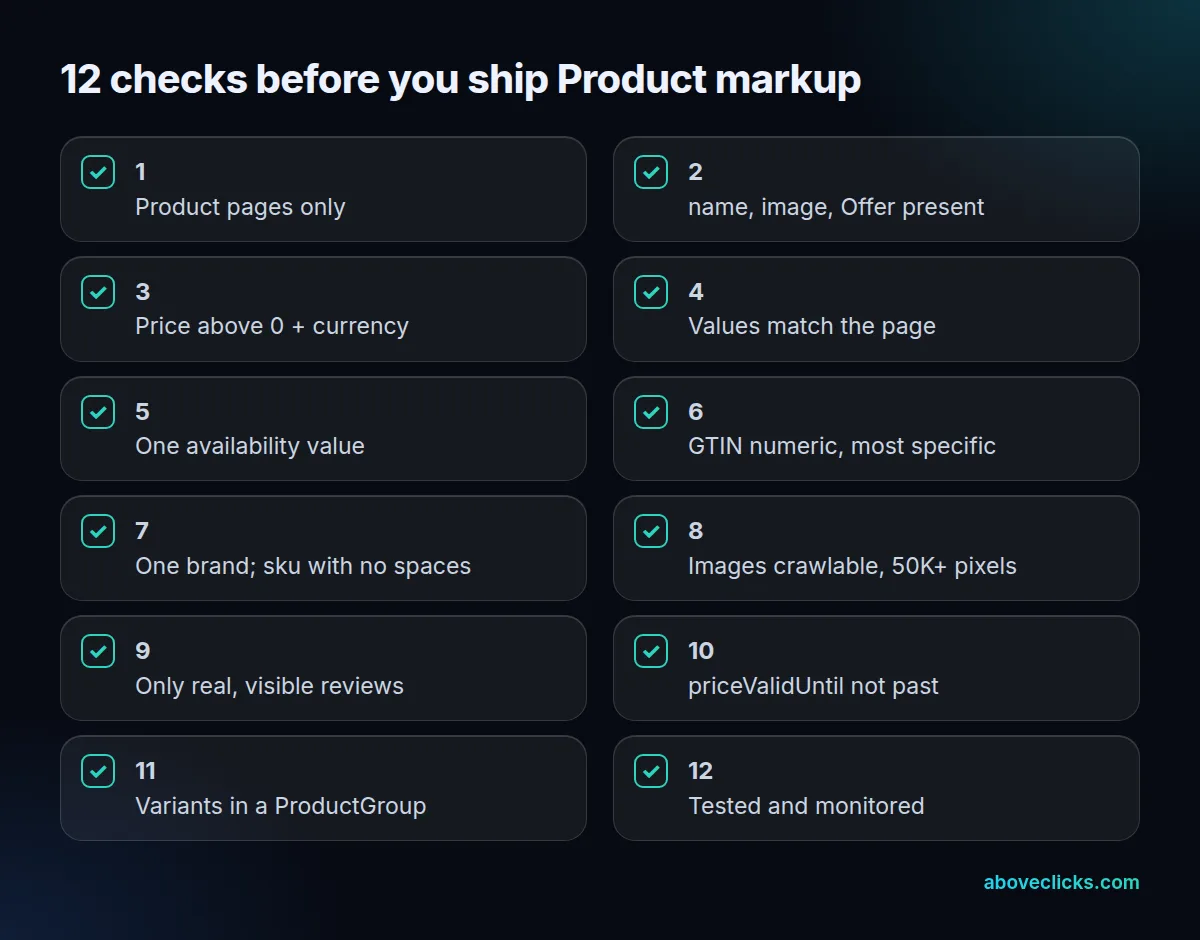
- Product pages only. Google says Product rich results support pages about a single product or its variants. Collection pages shouldn’t carry Product markup. They have their own job, covered in our guide to collection page SEO.
- name, image and an Offer are present. These are the required properties for merchant listings.
- Price above zero, with a currency. Merchant listings need a price greater than zero.
- Values match the page. Google’s general guidelines say not to mark up content that isn’t visible to the reader. The price in the markup must be the price on the page.
- One availability value, and it changes when the product sells out.
- GTIN in numeric form, using the most specific type.
- At most one brand name, and a sku with no spaces.
- Images Google can crawl. For best results Google recommends several high-resolution images of at least 50,000 pixels (width × height), in 16×9, 4×3 and 1×1.
- Only real reviews that shoppers can see. Google’s guidelines forbid fake reviews and say to mark up all the reviews visible on the page, not a flattering selection.
- priceValidUntil isn’t in the past. Google says a listing may not display if it is. Leave it out unless the price really ends.
- Variants grouped with ProductGroup, each with its own URL.
- Tested and monitored, which is the next section.
What to fill first when time is short
A store with hundreds of products can’t hand-check every field in a week. This order fixes the problems that cost eligibility first, then adds the details that improve the result:
- Errors on required properties. Missing name, image, price or currency stops a page from being eligible at all.
- Price and availability accuracy. Google may verify merchant listing data against the page, and a mismatch is the error shoppers notice first.
- Identifiers. GTIN, brand and sku help Google match your product to the same item sold elsewhere.
- Store-wide shipping and returns under Organization markup: one change that applies to every product.
- Reviews and ratings, only if they’re real reviews shown on the page.
- Variants in a ProductGroup, once the single-product markup is clean.
Common product schema markup mistakes
- Product markup on collection pages. It describes a list, not a product, which Google’s guidelines don’t support for Product rich results.
- A price of zero or a missing currency. Merchant listings need both.
- Stale availability. The product sold out yesterday, but the product schema still says InStock.
- Two Product blocks for one product, one from the theme and one from an app, with different prices.
- Ratings with no visible reviews, or reviews copied from another site. Google’s guidelines rule out both.
- GTINs as URLs or with spaces. Use the plain number.
How to test and monitor
Google’s own workflow for product schema is short:
- Rich Results Test: fix every critical error. Non-critical warnings are worth fixing but don’t block eligibility.
- URL Inspection in Search Console: check that Google can reach the page and that robots.txt, noindex or a login doesn’t block it.
- The Merchant listings report in Search Console: it lists errors and warnings across all product pages. The Product snippets report is only needed for pages where people can’t buy.
After a fix, request recrawling for a few key URLs and give Google time. Run the Rich Results Test again after every theme update or new app install, because either one can change or duplicate the markup without warning. Product schema that passes every test is still only eligible: Google decides when to show rich results.
Product schema markup is one step in the larger order of work in our ecommerce SEO guide. If you’d like the markup, feed and product pages checked together, our ecommerce SEO service includes it.